Want to Password-Protect a PDF? Follow These Best Practices

We periodically field questions about password-protecting a PDF to prevent the wrong people from reading it. Lawyers want to ensure that drafts of legal documents don’t fall into the wrong hands, financial advisers want to keep confidential financial information private, and authors want to prevent their writing from being shared broadly on the Internet. Others don’t worry so much about a document being read but want to ensure that it can’t be changed or printed.

PDF provides options for password-protecting documents for just these reasons, and you can add such protection to your PDFs in both Apple’s Preview and Adobe Acrobat. We’ll explain how to do that, but before we do, we want to share some best practices to increase the likelihood that your PDFs will remain protected as you wish.

Also, if you’re looking for a comprehensive solution to protecting lots of documents for a wide variety of situations, you’d be better off investigating document digital rights management systems along the lines of LockLizard and Vitrium.

Best Practices for Password-Protecting PDFs

There’s no such thing as perfect security, especially when you want to share information with others rather than just keeping it as your own secret. But you can increase the security of shared documents with these best practices.

  • Use strong passwords: All PDF passwords should be longer than 12 characters and include uppercase and lowercase letters, numbers, and punctuation, without using dictionary words or well-known number/letter substitutions. A plethora of online PDF unlocking tools can remove weak passwords, and passwords should be strong enough to withstand brute force and dictionary attacks from a determined attacker who could bring significant computing resources to bear.
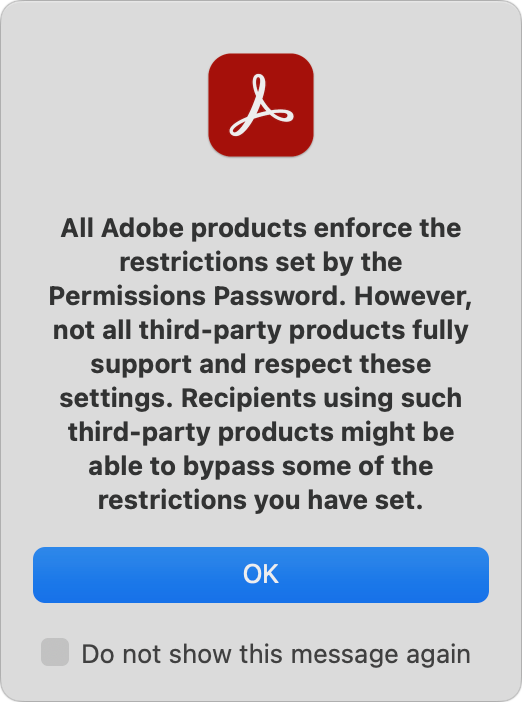
  • Focus on Document Open passwords: PDFs can have two passwords: the Document Open password that users must enter to open the document and a Permissions password that restricts actions like editing, printing, and copying. Even if you mainly want to restrict actions, it’s worth setting a Document Open password because the Permissions password’s restrictions can be bypassed by third-party utilities or by screenshots and Live Text.
  • Share passwords out of band: When sharing a protected PDF with someone, send them the password via a different communications channel. So, if you email the PDF, give them the password via Messages or a voice call. That way, if an attacker gains access to the PDF, they won’t also have the password sitting next to it.
  • Educate recipients: When you share a user password with someone else, they can give it to anyone they want and, depending on how you set things up, remove the protection from the document. In short, your document security is only as strong as your recipients want it to be, so make sure to communicate your wishes to them.
  • Watermark documents: Along those lines, it may be worth adding a header/footer or watermark that identifies the document as Confidential or Draft to clarify why it shouldn’t be shared.
  • Avoid online tools: Numerous websites offer PDF utility functions, such as adding passwords, watermarking, merging and splitting, conversion, and more. There’s no harm in using them with documents you don’t care about, but if you’re concerned enough to password-protect a PDF, don’t upload it to a website with unknown security and document retention policies.
  • Clear metadata: Passwords protect PDF content, but not necessarily metadata that might include the author’s name, employer, and keywords.
  • Use Adobe Acrobat: Apple’s Preview is a decent PDF app and offers basic password-protection capabilities, but for more protection capabilities and options, use the full-featured Adobe Acrobat. Preview is OK for those who need to protect an occasional PDF, but Acrobat is a better choice if protecting PDFs is essential for your situation.

Password-Protect a PDF Using Preview

It’s easy to add password protection to a PDF with Preview. Apple recommends a slightly fussier approach that involves setting the permissions during an export, although we didn’t find that it made any difference. Apple is likely trying to get you to make a copy so you don’t password-protect your original, but it’s easier to duplicate the file in the Finder first with File > Duplicate. Here’s the simple method:

  1. With a copy of a PDF open in Preview, choose File > Edit Permissions to display the permissions dialog.
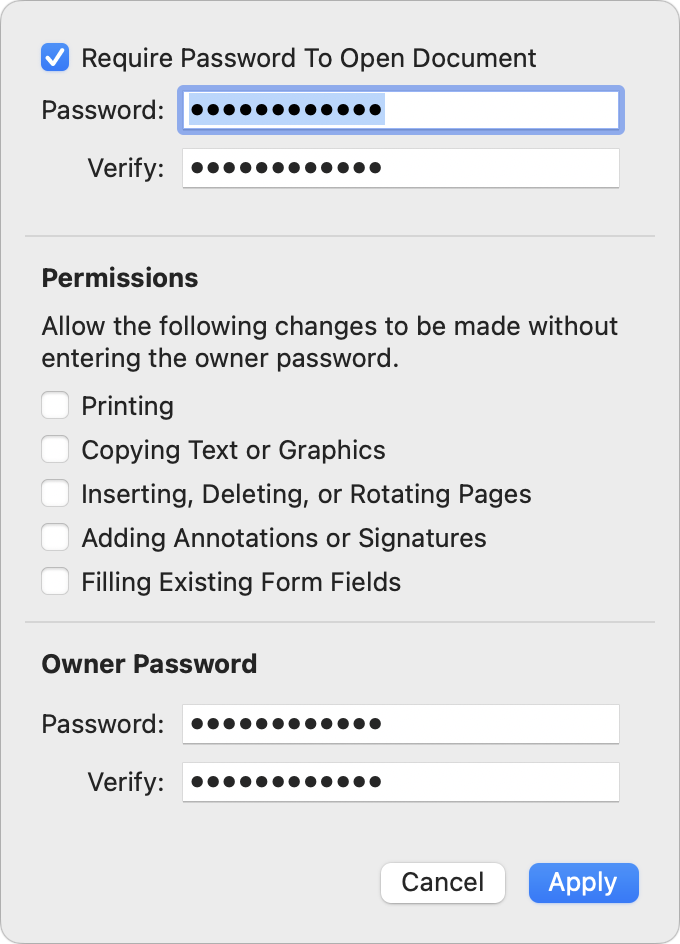
  2. Select Require Password To Open Document, and enter the desired Document Open password twice.
  3. Deselect desired checkboxes in the Permissions section to restrict those activities.
  4. Enter the Owner (Permissions) password twice at the bottom of the dialog. It should be different from the Document Open password. Either will open the document, but only the Owner (Permissions) password will allow the document to be printed, copied, or edited as per those checkboxes.
  5. Click Apply and save the document.

Password-Protect a PDF Using Adobe Acrobat

Adobe has extensive instructions on password-protecting PDFs using Acrobat in different scenarios, but the basics are still simple.

  1. With a copy of a PDF open in Acrobat, choose File > Protect Using Password to open the password dialog.
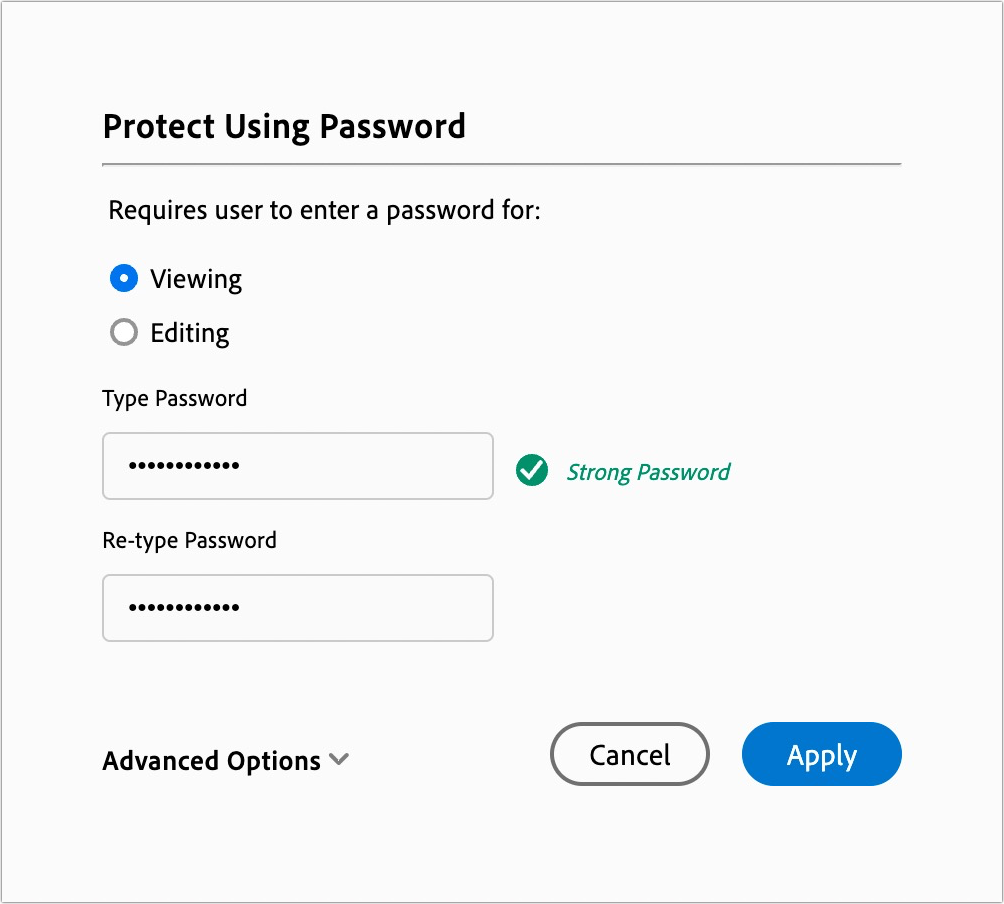
  2. Select Viewing to add a Document Open password or Editing to add a Permissions password.
  3. Enter the password, and retype it to confirm it.
  4. Click Apply and save the document.

For a simple Document Open password, you’re all done, but if you want to set specific printing, editing, and copying restrictions, follow these steps:

  1. Choose Edit > Protection > Security Properties to open the Document Properties dialog with the Security tab selected.
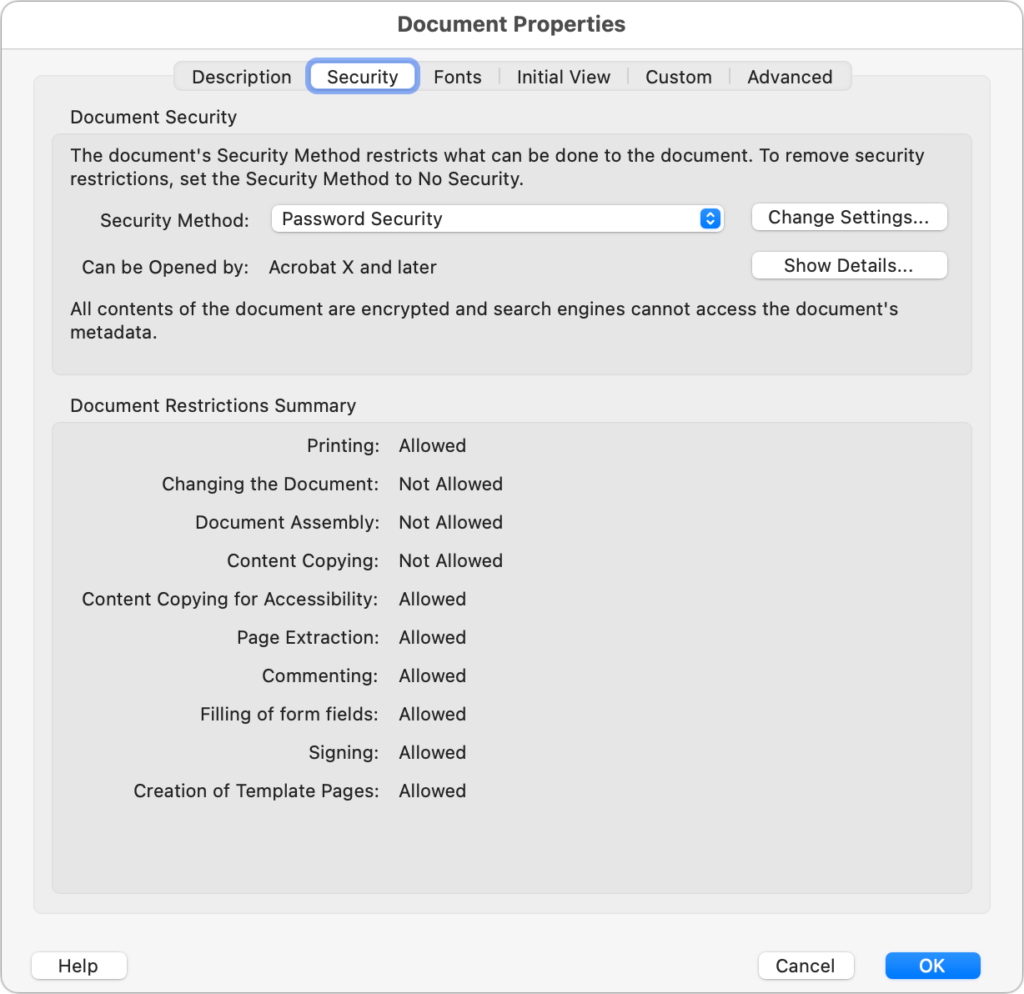
  2. Next to Security Method (which should be set to Password Security), click Change Settings to open the Password Security – Settings dialog.
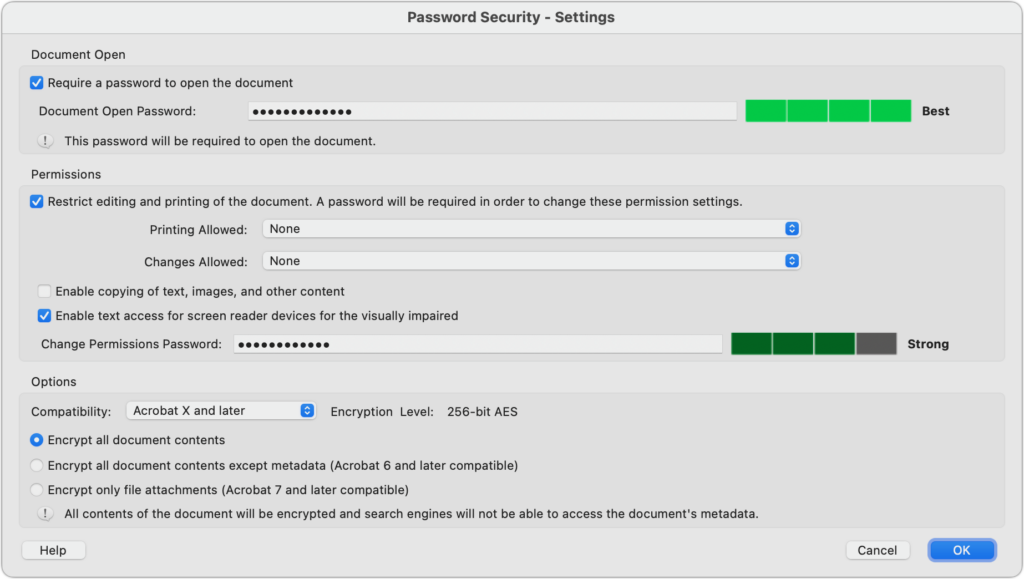
  3. In the Permissions section, select the desired options to restrict printing, editing, and copying text in various ways.
  4. Click OK and, when prompted, confirm the passwords you’ve entered.
  5. Dismiss the Document Properties dialog and save the document.

Password-protecting a PDF can be helpful when you want to ensure a PDF containing sensitive information can’t be viewed or edited by the wrong people. Make sure to use strong passwords since weak passwords are so easily removed!

(Featured image based on an original by iStock.com/Thitichaya Yajampa)


Social Media: If you have a PDF with confidential information that you want to share, you can set a password to restrict opening, printing, or editing. We have instructions for Preview and Adobe Acrobat, plus advice on ensuring your document stays secure.

Similar Posts

  • A Swinging Hot Spot in Paradise

    You are visiting Key West, accompanied by your trusty iPhone and MacBook Air. Suddenly there’s an emergency at work, and you need to get online with your Mac. You can pick up a cell signal with the iPhone, but there’s no Wi-Fi that isn’t locked up. Well, my first thought might be “oh well, I’m on vacation!” but you are dedicated and need to be online.

    Don’t worry! You can use your iPhone’s cellular data plan to create a personal Wi-Fi hotspot that lets your Mac access the Internet through your iPhone. Also called “tethering,” it’s fast, easy, and can be a life-saver when you just have to get online with a Mac or your Wi-Fi-only iPad. It supports up to 5 users, too, which means you can get your team online, too!

    Before we explain how to do set up a personal hotspot, note that most but not all cellular carriers allow tethering on existing plans. For some, you might have to pay more for tethering. Keep in mind that any data consumed by your Mac while tethered will count against your data allowance and may generate overage fees. Carriers with “unlimited” data, like T-Mobile and Sprint, generally throttle your bandwidth to slower speeds if you use too much data.

    Along those lines, if you use a file sharing service like Dropbox or Google Drive, or an Internet backup service like CrashPlan or Backblaze, turn them off before connecting. Particularly if they haven’t connected in a while, those services can transfer a lot of data quickly, which could result in a hefty overage charge or awkward data throttling for the rest of the month.

    With those warnings out of the way, follow these steps in iOS 9 to turn on Personal Hotspot:

    1. On your iPhone, if you’ve never enabled the feature before, go to Settings > Cellular > Personal Hotspot. Once you’ve turned Personal Hotspot on once, it moves up a level, so you can access it from Settings > Personal Hotspot.
    1. Tap on Wi-Fi Password and enter a password that’s at least 8 characters long and easy to type. It doesn’t need to be super secure because you can keep Personal Hotspot turned off unless you’re using it. But you do want a password so random people nearby can’t connect and use your data.
    1. Once you’ve entered a password, slide the Personal Hotspot switch.

    That’s it! The Personal Hotspot screen provides basic instructions for connecting to the iPhone via Wi-Fi, Bluetooth, and USB. Stick with Wi-Fi, since it’s the easiest and most reliable in most cases.

    • To connect to your new Personal Hot Spot on your Mac, click the Wi-Fi icon in the menu bar and choose your iPhone’s name.
    • On your iPad, go to Settings > Wi-Fi and choose your iPhone.
    • Enter your password when prompted, making sure to select Remember This Network. That way, you won’t even have to enter your password the next time.
    • The Mac or iPad then connects to your iPhone, showing a hotspot icon instead of the usual wave icon for the Wi-Fi menu.

    Could it get any simpler? When you’re done, the safest thing to do, to ensure you don’t accidentally end up using too much of your data allowance, is to turn off the Personal Hotspot switch in Settings > Personal Hotspot. Your Mac or iPad will automatically disconnect.

    Actually, it CAN be simpler! Your Mac can automatically use the personal hotspot on your iPhone to connect to the Internet when they’re within range of each other.

    Use Instant Hotspot on your iPhone (with iOS 8 or later) to provide internet access to your Mac computers and other iOS devices (with OS X Yosemite or iOS 8) that are in range and signed into iCloud using the same Apple ID. Instant Hotspot uses your iPhone — you don’t have to enter a password or even turn on Personal Hotspot.

    Make sure your iOS device and your Mac are signed into iCloud with the same Apple ID.

    On your Mac, click the Wi-Fi status icon in the menu bar, then choose your iPhone or iPad.

    After you connect to the iPhone or iPad Personal Hotspot, you can check the cellular signal strength and the battery status of the iPhone or iPad in the Wi-Fi status menu.

    When you’re not using using the hotspot, your devices automatically disconnect to save battery life.

    One more big advantage of Personal Hot Spots. When you are shopping for that new iPad, perhaps you don’t need the cellular model if you nearly always have your iPhone handy. That’s what I do. If I need internet access on my Wi-Fi iPad, I simply connect to my Hot Spot! Saves me the added cost of a cellular-enabled iPad and the monthly fees from the cell carrier!

  • Reminders (Finally) Adds Time Zone Support

    Apple’s latest operating systems have eliminated a longstanding annoyance for frequent travelers: the lack of time zone support in Reminders. If you had…

  • _Dear Friends,_

    Don’s making the voyage home this week from Key West back to the Green Mountains. He’s in for a bit of a shock when he gets back. Mother Nature seems to have gotten a bit confused this week. I mentioned in the fall that I was taking a new stance on winter and was going to embrace it this year and I truly did my best though we didn’t see much snow. But when we get a snow in late April, I choose to just ignore it. I didn’t bother to shovel off my deck and I left the hose to water my horses just thrown on the ground. In the end both these decisions only made my life harder. I had to lug water buckets for my horses as my hose was not only frozen to the ground, but frozen itself because I didn’t take the time to drain the water out of it. All the slush and snow I ignored on my deck was a sprained ankle waiting to happen and my screen door only opened halfway once everything froze back up. Well, let’s just hope this was finally the last of it and spring will finally show up for real. It always looks a little funny when the trees are starting to bud and there is still snow on the ground.

    The snow this week was a bit of a shock to many of us, and so was the latest financial report from Apple. For the first time in 13 years, Apple’s financial report showed lower than expected sales figures. iPhone sales showed their first decline since their release and iPad sales have been sluggish for several quarters now, but we’ll have more on this later in Kibbles.

    This week’s Kibbles & Bytes exclusive is perfect for the on-the-run Mom on your list or anyone who is on the go and trying to fit time in for themselves between home and the office. This week only, save $40 on this perfect on-the-run bundle. Get the OutDoor Tech Kodiak mini, the BlueAnt Pump Mini headphones and the Belkin Slim-Fit Plus armband for “**$99.97**.”:http://www.smalldog.com/wag900002212 This bundle is perfect for ensuring the mom who does it all can keep can keep her phone going to capture those special moments or squeeze in an important call during her workout.

  • Apple Stands Up The Street

    $50.6 Billion in revenue, $10.5 Billion in net profit and $235 Billion in the bank. Let’s get one thing straight, 99.9% of the companies in the world would love to have those kind of numbers. And while this fell into the range of Apple’s forward-looking guidance, it did fall short of the expectations of the analysts.

    This was the first time in 13 years (!) that Apple posted lower year-over-year sales. Apple saw lower iPhone sales than last year at this time. However, keep in mind that was when the iPhone 6 was at its peak. Nevertheless, Apple sold 51.1 million iPhones and said they are having difficulty keeping up with the demand for the recently released iPhone 5se.

    Mac sales and iPad sales also declined as expected with Apple selling a bit over 4 million Macs and 10.25 million iPads. On the bright side, Services revenue increased 20% to almost $6 billion and “other” products which include Apple TV, Apple Watch, Beats and iPod generated $2.189 billion which is 30% growth.

    Apple’s board of directors both increased the dividend paid on Apple shares to $0.57 which is about a 10% raise and increased their share buy-back program. With Apple being so widely held, this dividend increase makes Apple one of the largest payers of dividends in the world. Since the start of their dividend and share re-purchase program, Apple has returned over $163 billion to shareholders, the majority of that being in the form of share buy-backs.

    Apple’s guidance for the current quarter which ends at the end of June also projects a year-over-year decline in revenues. They forecast sales in the range of $41-$43 billion which is also lower than analysts predicted.

    There is no sugar-coating these results which were for the most part, a miss. Forecasting demand, revenue and margin is tricky and there are a bunch of factors that enter into this calculation and a bunch more that are ready to blow up the forecast. International monetary trends, new product introductions are all a bit of a wild card.

    There is some good news hidden in the report. Apple said that the iPhone enjoys an unprecedented 95% loyalty rate, Apple Pay is seeing 1 million new users a week, 13 million people subscribe to Apple Music and Apple’s installed base is 1 billion devices and growing.

    Apple had a huge hit with the iPhone 6 and that did push sales to a peak level last year. It was an anomaly, however, and Apple’s business is still incredibly strong, just a bit more down to earth. You can’t hit home runs every time at bat! Tim Cook says the product pipeline is strong and I believe him.

    Hey, I didn’t have to come up with a new adjective to describe what Apple did to the street this quarter. That’s a fringe benefit. Putting this all into perspective is important. It is not like Apple is losing money or losing customers. In fact, the opposite is true. In three short months, they made over $10 billion in profit and sold millions and millions of iPhones, iPads and Macs! Now, if Small Dog could just do a tiny fraction of that…