
Four Solutions to Gotchas in macOS 14 Sonoma

We’re seeing an increasing number of people switching to macOS 14 Sonoma, and for the most part, things are going well. However, Apple introduced some new features—and turned them on by default—that are causing some consternation. If you’ve switched to Sonoma or are planning to soon, here are four features you might want to know about.

Hide Windows when Clicking on the Desktop

The most immediately surprising thing you’ll notice when you upgrade to Sonoma is that clicking an empty area on the desktop moves all windows off to the side to give you full access to icons and widgets on your desktop. It’s not a bad feature, but if you’re accustomed to clicking the desktop simply to switch to the Finder, it can be off-putting. To keep windows where they are, open System Settings > Desktop & Dock, and under Desktop & Stage Manager, where it says “Click wallpaper to reveal desktop,” choose Only in Stage Manager.
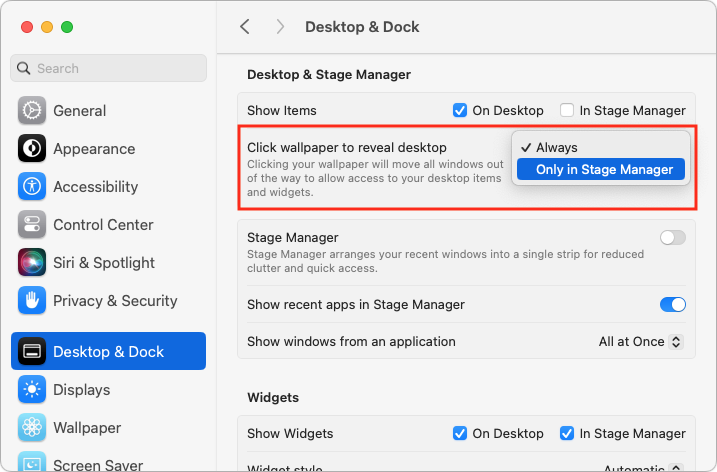
Apple has introduced additional interlocking settings here, so you might want to play with them to see if they support your preferred working style. In particular, note the Show Items checkboxes—if you don’t like seeing all your desktop icons, deselect the On Desktop box to make those icons appear only when you click the desktop.

Print Queue Apps Are Now Part of Print Center

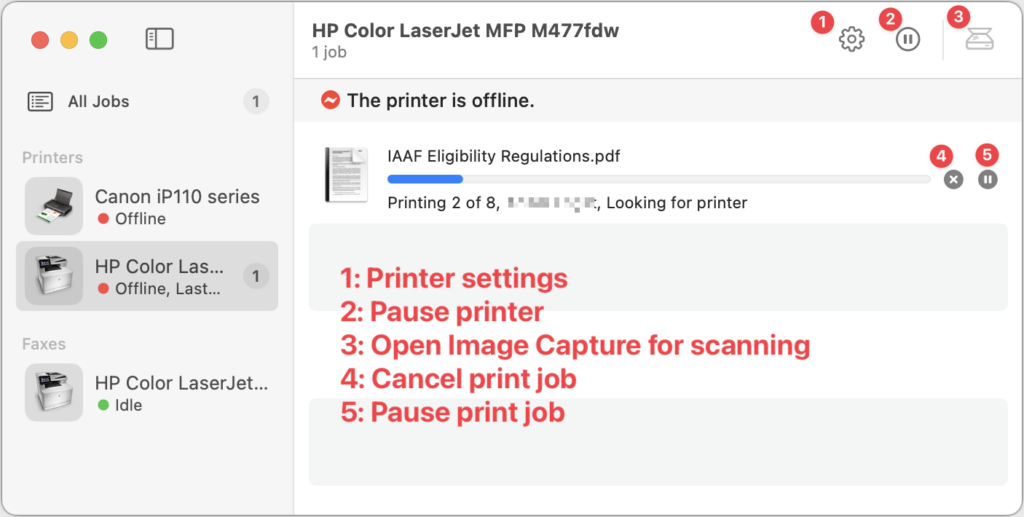
For many years, when you printed from a Mac, a print queue app launched to show the progress of your print job and quit automatically once the job was completed. Some people kept those print queue apps in the Dock afterward, perhaps as a way of accessing a multifunction printer’s scanner. Upgrading to macOS 14 Sonoma broke those Dock icons because individual print queue apps have been replaced by the new Print Center app.

Print Center now launches automatically to show print job progress, but you can also open it manually from the Application folder’s Utilities folder. It also offers options to manage the printer and launch Image Capture, Apple’s default interface for scanning. If you’ve been surprised by printing changes in Sonoma, take a few minutes to familiarize yourself with Print Center.
Gestures Can Trigger Fireworks and Other Effects

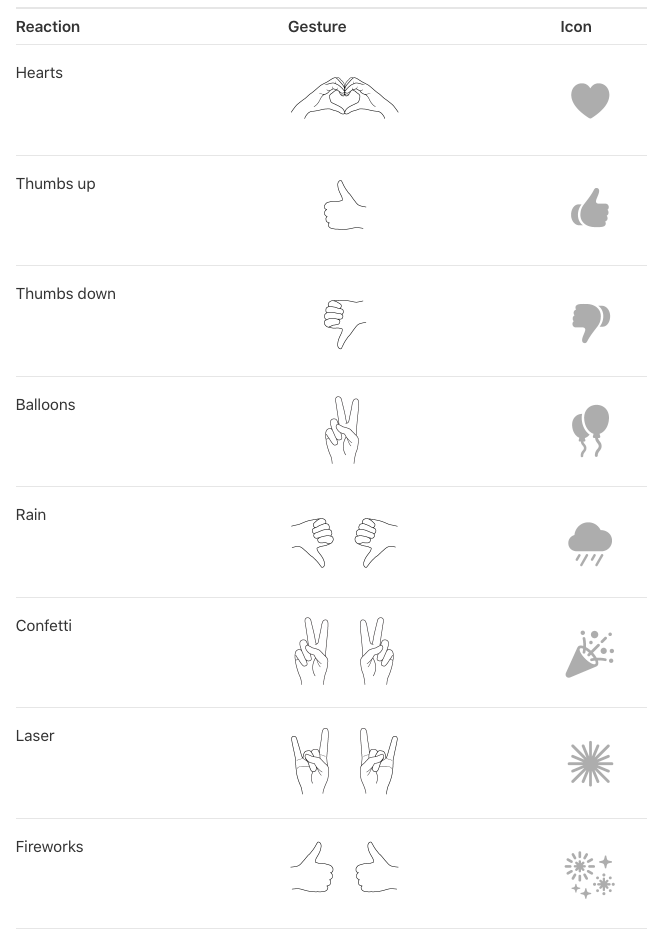
In Sonoma, when you’re in a video call using FaceTime, Zoom, Webex, or another supported videoconferencing app, making certain hand gestures will trigger special effects. (This works only on a Mac with Apple silicon or when using an iPhone as your webcam.) These reactions are fun… except when they’re not. A double thumbs-down gesture that generates rain during a therapy session may be utterly inappropriate, and causing balloons to fall during a serious business meeting just because you inadvertently made a V with your index and middle fingers might not be considered amusing. Here are the gestures and what they trigger.
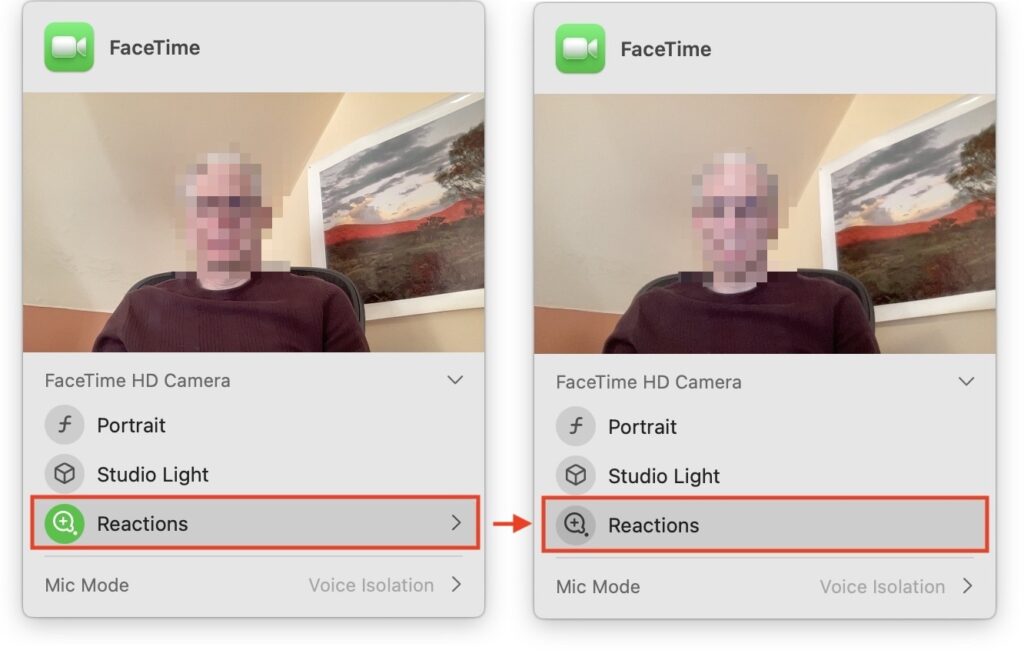
To ensure you don’t accidentally generate a reaction with a stray gesture, click the green video camera icon that appears in your menu bar when using one of the apps that supports reactions. (You must be actively sending video—just having the app open may not be sufficient to make the green icon appear.) Then click Reactions under your preview so it goes from having a green icon to a gray icon. Reactions are now disabled. That app should remember your preference, but you’ll have to turn off reactions separately in every app where they’re available.
New Privacy Awareness Icons

That green video camera icon that appears in your menu bar when sending video in Sonoma isn’t the only one that can appear in that spot, and we’ve fielded questions from people who are surprised and confused by these icons appearing. Don’t worry; they aren’t an indication of malware on your Mac! Apple added them so you’d always be aware when an app was using your Mac’s camera or microphone, or recording the screen. You can think of them as an expansion of the tiny green LED that lights up next to the Mac’s camera when it’s in use.
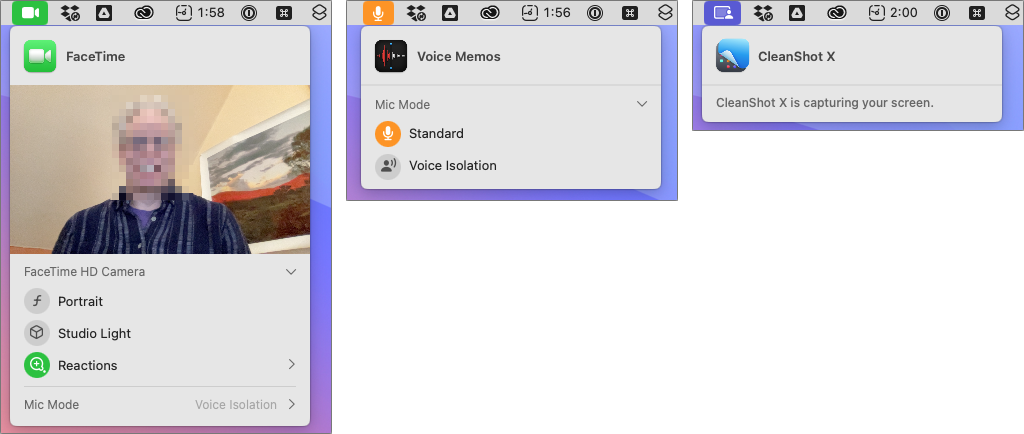
The three icons you might see are:

  • Green camera, which indicates that the Mac’s video camera is in use. The microphone may also be active, but that’s not indicated separately.
  • Orange microphone, which shows that the Mac’s mic is recording audio.
  • Purple screen, which tells you that an app is recording your screen. Beyond screen-sharing apps, other apps like screenshot utilities can trigger this icon.

Click the icon to see what app is involved. You could even see multiple apps listed at the top, if several apps are recording the screen, for instance.

If you’ve switched to Sonoma already, we hope this quick tour of a few potentially confusing features has helped explain what’s going on. And if you’re still waiting to install Sonoma—which is fine!—remember to come back to this article when you decide to upgrade.

(Featured image based on an original by iStock.com/fizkes)


Social Media: Some of the new default features in Sonoma have caused confusion. We explain why windows hide when you click the desktop, where printer queue apps went, how to turn off the new reaction gestures, and the privacy awareness icons.
Similar Posts

  • Clean Your iPhone’s Camera Lens

    Serious photographers take care of their lenses. The rest of us just stuff our iPhones into our pockets or purses and pay no…

  • Backups: Trust but Verify

    It’s easy to assume your backup app—whether it’s Time Machine, Carbon Copy Cloner, Backblaze, Retrospect, or something else—is quietly doing its job. But…

  • Hey Siri, What Can You Do?

    So, I am a little embarrassed to admit it but I bought an Amazon Echo to check out how Alexa compares with Siri. I’m a gadget guy so we will see if we find it useful and if not, I am sure I can find it a home on eBay. I use Siri more and more these days. My most common uses are asking her to settle trivia disputes with Grace or setting the timer for 5 minutes. But there is a lot more that Siri can do!

    Make Relationships with Siri
    When you speak Siri commands, you can refer to people by relationship, rather than name. So, if you want to call your father, you can say “call my father” instead of saying “call Bruce Leibowitz.” But to do this, you need to introduce Siri to your family. First, make sure you have a “card” in the Contacts app for yourself, and then go into Settings > Mail, Contacts, Calendars, scroll down to find and tap My Info, and select your card. Next, make sure you have a contact card for your father, and then tell Siri, “Bruce Leibowitz is my father.” Or, if Siri doesn’t hear you correctly, open Contacts, edit your card (not your father’s!), scroll down, tap “add related name,” tap the default relationship to pick “father,” tap the info “i” icon, select your father’s card, and tap Done.

    You can even use Siri to remember other types of relationships. Artie used to bring manure from his uncle’s farm for my garden and ended up with the nickname, “the spreader”. If I tell Siri “Art Hendrickson is my spreader” I can now just say “text my spreader…” and Siri knows who I am talking about. This works for nicknames but also for lawyers, accountants, doctors or any nickname you want to tell Siri about.

    Take a Picture
    Instead of fumbling to launch the Camera app on your iPhone you can just say “take a picture” and Siri will automatically open the Camera app and you can snap away.

    Siri Converts
    Need to know how many millimeters are in 4 inches? Just ask Siri and you will find that there are 101.6 mm in 4 inches. This works for currency exchange rates, too. Ask Siri how many Euros are equal to $100US you will find that 87.73 Euros is the exchange rate today. Siri has some other strong calculation features too. You can ask Siri how many calories there are in that fish sandwich or to calculate a 20% tip on your restaurant bill. You can ask her to solve math problems involving fractions and other math functions that will be faster than opening the calculator app and punching in the numbers.

    Settling Up
    Okay you can use Siri to look up baseball stats or other information to settle a dispute but what if you are at loggerheads and just want to get a random answer and don’t have a coin to flip. You can ask Siri to “roll the dice”, “flip a coin” or pick a random number.

    Name that Tune
    Siri is integrated with Shazam to help you figure out what song is playing. Just ask her “what song is playing?” and she will listen and let you know and probably try to sell you the song, too!

    Find that Photo
    Siri can search your photo library for you. I know how frustrating it is if your are like me and have literally thousands of photos. You can say something like “find that photo from Daytona Beach from last March” and Siri will launch Photos and take you right to any photos taken at that place and time.

    Siri Takes You Out
    Siri can make your restaurant reservations for you, too! Tell Siri “make a restaurant reservation for four at 7PM” and she will respond with available restaurants nearby and if you have the Open Table app installed can make the reservation for you or give you the phone number to call.

    Are We There Yet?
    If you are using your iPhone for navigation you can just say “ETA” and Siri will let you know how much longer you are gonna be on the road.

    Leave Me Alone
    Siri can do a lot for you but sometimes you just want alone time. You can tell Siri to turn on “do not disturb” and you will not be bothered. Or tell her to “turn on airplane mode” and she will turn off Wi-Fi and cellular signals.

  • _Dear Friends,_

    Don’s making the voyage home this week from Key West back to the Green Mountains. He’s in for a bit of a shock when he gets back. Mother Nature seems to have gotten a bit confused this week. I mentioned in the fall that I was taking a new stance on winter and was going to embrace it this year and I truly did my best though we didn’t see much snow. But when we get a snow in late April, I choose to just ignore it. I didn’t bother to shovel off my deck and I left the hose to water my horses just thrown on the ground. In the end both these decisions only made my life harder. I had to lug water buckets for my horses as my hose was not only frozen to the ground, but frozen itself because I didn’t take the time to drain the water out of it. All the slush and snow I ignored on my deck was a sprained ankle waiting to happen and my screen door only opened halfway once everything froze back up. Well, let’s just hope this was finally the last of it and spring will finally show up for real. It always looks a little funny when the trees are starting to bud and there is still snow on the ground.

    The snow this week was a bit of a shock to many of us, and so was the latest financial report from Apple. For the first time in 13 years, Apple’s financial report showed lower than expected sales figures. iPhone sales showed their first decline since their release and iPad sales have been sluggish for several quarters now, but we’ll have more on this later in Kibbles.

    This week’s Kibbles & Bytes exclusive is perfect for the on-the-run Mom on your list or anyone who is on the go and trying to fit time in for themselves between home and the office. This week only, save $40 on this perfect on-the-run bundle. Get the OutDoor Tech Kodiak mini, the BlueAnt Pump Mini headphones and the Belkin Slim-Fit Plus armband for “**$99.97**.”:http://www.smalldog.com/wag900002212 This bundle is perfect for ensuring the mom who does it all can keep can keep her phone going to capture those special moments or squeeze in an important call during her workout.