Where Can You Control Automatic Smart Quotes and Dashes in macOS?

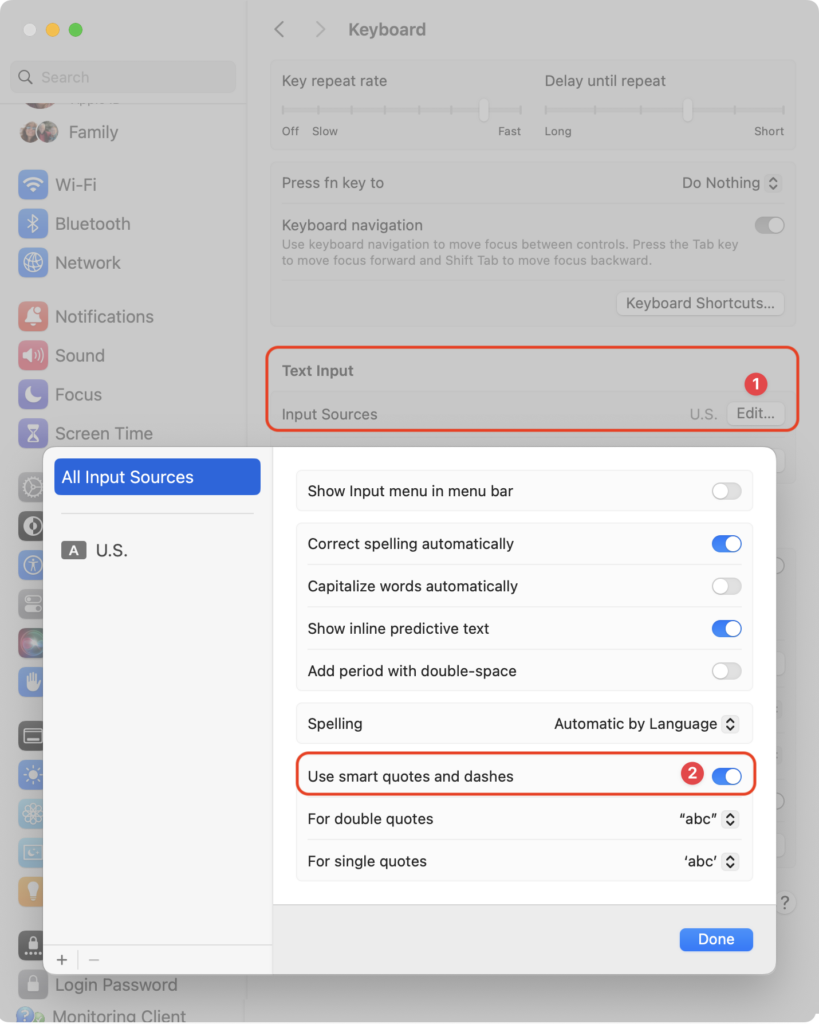
Most people like smart quotes and dashes, at least most of the time. Your Mac is probably set up to turn the single (‘) and double (“) hash marks and double hyphens (–) that you type into the apostrophes (’) and single smart quotes (‘’), double smart quotes (“”), and em dashes (—) used in professional publications. However, in some situations, like programming, smart quotes and dashes are problematic. To prevent macOS from automatically inserting them, open System Settings > Keyboard and click the Edit button next to Input Sources. In the dialog that appears, turn off “Use smart quotes and dashes.” As a bonus tip, if you occasionally want single or double hash marks, such as to indicate feet and inches, instead of turning the entire feature off, immediately press Command-Z after typing a single or double hash mark to undo the change from straight to curly.
(Featured image by iStock.com/Wirestock)


Social Media: Smart quotes and dashes usually make your text look more professional. But if they’re problematic, you can turn off the feature that inserts them automatically or revert them on a one-off basis.


Similar Posts

  • It is definitely feeling like spring here in Key West as the flowers are blooming and we wake up each morning to the birds singing (okay and the roosters crowing, too). I get the morning snow (or lack thereof) report from Emily every day and spring hadn’t quite arrived up in Georgia when I was there, either.

    Grace and I are heading up to the 75th Annual Daytona Bike Week for a couple days and then hitting a Cirque du Soleil show in Miami on the way back. Somewhere in there I will be writing Kibbles, perhaps on my iPad mini 4.

    Thank you for reading this issue of Kibbles & Bytes!

    Your Kibbles & Bytes Team,

    _Don, Emily & Hadley_

  • A Swinging Hot Spot in Paradise

    You are visiting Key West, accompanied by your trusty iPhone and MacBook Air. Suddenly there’s an emergency at work, and you need to get online with your Mac. You can pick up a cell signal with the iPhone, but there’s no Wi-Fi that isn’t locked up. Well, my first thought might be “oh well, I’m on vacation!” but you are dedicated and need to be online.

    Don’t worry! You can use your iPhone’s cellular data plan to create a personal Wi-Fi hotspot that lets your Mac access the Internet through your iPhone. Also called “tethering,” it’s fast, easy, and can be a life-saver when you just have to get online with a Mac or your Wi-Fi-only iPad. It supports up to 5 users, too, which means you can get your team online, too!

    Before we explain how to do set up a personal hotspot, note that most but not all cellular carriers allow tethering on existing plans. For some, you might have to pay more for tethering. Keep in mind that any data consumed by your Mac while tethered will count against your data allowance and may generate overage fees. Carriers with “unlimited” data, like T-Mobile and Sprint, generally throttle your bandwidth to slower speeds if you use too much data.

    Along those lines, if you use a file sharing service like Dropbox or Google Drive, or an Internet backup service like CrashPlan or Backblaze, turn them off before connecting. Particularly if they haven’t connected in a while, those services can transfer a lot of data quickly, which could result in a hefty overage charge or awkward data throttling for the rest of the month.

    With those warnings out of the way, follow these steps in iOS 9 to turn on Personal Hotspot:

    1. On your iPhone, if you’ve never enabled the feature before, go to Settings > Cellular > Personal Hotspot. Once you’ve turned Personal Hotspot on once, it moves up a level, so you can access it from Settings > Personal Hotspot.
    1. Tap on Wi-Fi Password and enter a password that’s at least 8 characters long and easy to type. It doesn’t need to be super secure because you can keep Personal Hotspot turned off unless you’re using it. But you do want a password so random people nearby can’t connect and use your data.
    1. Once you’ve entered a password, slide the Personal Hotspot switch.

    That’s it! The Personal Hotspot screen provides basic instructions for connecting to the iPhone via Wi-Fi, Bluetooth, and USB. Stick with Wi-Fi, since it’s the easiest and most reliable in most cases.

    • To connect to your new Personal Hot Spot on your Mac, click the Wi-Fi icon in the menu bar and choose your iPhone’s name.
    • On your iPad, go to Settings > Wi-Fi and choose your iPhone.
    • Enter your password when prompted, making sure to select Remember This Network. That way, you won’t even have to enter your password the next time.
    • The Mac or iPad then connects to your iPhone, showing a hotspot icon instead of the usual wave icon for the Wi-Fi menu.

    Could it get any simpler? When you’re done, the safest thing to do, to ensure you don’t accidentally end up using too much of your data allowance, is to turn off the Personal Hotspot switch in Settings > Personal Hotspot. Your Mac or iPad will automatically disconnect.

    Actually, it CAN be simpler! Your Mac can automatically use the personal hotspot on your iPhone to connect to the Internet when they’re within range of each other.

    Use Instant Hotspot on your iPhone (with iOS 8 or later) to provide internet access to your Mac computers and other iOS devices (with OS X Yosemite or iOS 8) that are in range and signed into iCloud using the same Apple ID. Instant Hotspot uses your iPhone — you don’t have to enter a password or even turn on Personal Hotspot.

    Make sure your iOS device and your Mac are signed into iCloud with the same Apple ID.

    On your Mac, click the Wi-Fi status icon in the menu bar, then choose your iPhone or iPad.

    After you connect to the iPhone or iPad Personal Hotspot, you can check the cellular signal strength and the battery status of the iPhone or iPad in the Wi-Fi status menu.

    When you’re not using using the hotspot, your devices automatically disconnect to save battery life.

    One more big advantage of Personal Hot Spots. When you are shopping for that new iPad, perhaps you don’t need the cellular model if you nearly always have your iPhone handy. That’s what I do. If I need internet access on my Wi-Fi iPad, I simply connect to my Hot Spot! Saves me the added cost of a cellular-enabled iPad and the monthly fees from the cell carrier!

  • _Dear Friends,_

    The trip up the the Everglades was pretty uneventful although we did see alligators and eagles as we were watching nature go by. Grace wants to go back up for an airboat ride so we will have to put that on the list.

    I am very happy to report that Small Dog Electronics now offers Go-Pro cameras and accessories. It took us many tries but I was able to meet with someone that could make a decision at CES in Las Vegas so we are now all set and Go-Pro should be in all of our stores. We’ll feature skiing and motorcycling kits up in the Green Mountains and some surf-oriented bundles down in Key West.

    I guess this should be in a soapbox but I just want to make a quick statement that I feel that Tim Cook and Apple are 100% correct in resisting the government’s attempt to force them to create software to defeat the encryption inherent in the iPhone. One of Apple’s most valuable commodities is safety. You know when you buy an Apple product that your data is safe. Safe from most viruses, malware, ransomware and also that your private data remains just that…private. While I certainly sympathize with those investigating the horrible San Bernadino terrorist actions, I do not feel that we should pay an even higher price and sacrifice our liberty and privacy as a result. Bravo to Tim Cook and Apple.

    This week’s Kibbles & Bytes exclusive is the “**Tempus Pro Weather Station.**”:http://www.smalldog.com/wag900002092 This complete wireless weather station has been one of out best selling devices. It combines an indoor monitoring station with an outdoor instrument and an iPhone or iPad App to give you complete weather information. It includes sensors for indoor and outdoor temperature, humidity, barometric pressure, rainfall and wind speed. It is simple to install and works by Bluetooth between the outdoor and indoor sensor and Wi-Fi to your iPhone. This is normally $159.99 but for this week for Kibbles & Bytes readers it is “**$25 off at $134.99!**”:http://www.smalldog.com/wag900002092

  • B.B. King – The King of the Blues

    For more than half a century, Riley B. King – better known as B.B. King – defined the blues for a worldwide audience. Since he started recording in the 1940s, he has released over fifty albums, many of them classics. He was born September 16, 1925, on a plantation in Itta Bena, Mississippi, near Indianola. In his youth, he played on street corners for dimes, and would sometimes play in as many as four towns a night. In 1947, he hitchhiked to Memphis, TN to pursue his music career. Memphis was where every important musician of The South gravitated, and it supported a large musical community where every style of African American music could be found. B.B. stayed with his cousin Bukka White, one of the most celebrated blues performers of his time, who schooled B.B. further in the art of the blues.

    B.B.’s first big break came in 1948 when he performed on Sonny Boy Williamson’s radio program on KWEM out of West Memphis. This led to steady engagements at the Sixteenth Avenue Grill in West Memphis, and later to a ten-minute spot on black-staffed and managed Memphis radio station WDIA. “King’s Spot,” became so popular, it was expanded and became the “Sepia Swing Club.” Soon B.B. needed a catchy radio name. What started out as Beale Street Blues Boy was shortened to Blues Boy King, and eventually B.B. King.

    In the mid-1950s, while B.B. was performing at a dance in Twist, Arkansas, a few fans became unruly. Two men got into a fight and knocked over a kerosene stove, setting fire to the hall. B.B. raced outdoors to safety with everyone else, then realized that he left his beloved $30 acoustic guitar inside, so he rushed back inside the burning building to retrieve it, narrowly escaping death. When he later found out that the fight had been over a woman named Lucille, he decided to give the name to his guitar to remind him never to do a crazy thing like fight over a woman. Ever since, each one of B.B.’s trademark Gibson guitars has been called Lucille.

    B.B. was inducted into the Blues Foundation Hall of Fame in 1984 and into the Rock and Roll Hall of Fame in 1987. He received NARAS’ Lifetime Achievement Grammy Award in 1987, and has received honorary doctorates from Tougaloo(MS) College in 1973; Yale University in 1977; Berklee College of Music in 1982; Rhodes College of Memphis in 1990; Mississippi Valley State University in 2002 and Brown University in 2007. In 1992, he received the National Award of Distinction from the University of Mississippi.

    B.B. King came to Vermont many times and I had the pleasure of being at several of his concerts. He died last year at the age of 90 and was performing to sold out crowds right up until he died. B.B. King is gone but the –The Thrill is Gone- lives forever.