When Should You Subscribe to AppleCare?
With Apple’s recent launch of AppleCare One, which covers multiple devices, and updates to its traditional AppleCare+ plans, you might be wondering what the best strategy is for post-warranty coverage of your Apple devices. Here’s what we suggest.
Your AppleCare Choices
First, to make sure we’re all on the same page, Apple now offers three AppleCare protection plans:
- AppleCare+: Apple’s traditional protection plan provides coverage for individual devices other than the iPhone, iPad, and Apple Watch, paid monthly or annually.
- AppleCare+ with Theft and Loss: This plan extends AppleCare+ with up to two annual claims for theft and loss and applies exclusively to the iPhone, iPad, and Apple Watch.
- AppleCare One: Apple’s new consolidated plan covers up to three devices for $19.99 per month. Additional devices—even those you already own—cost an extra $5.99 per month each. It includes up to three annual claims for theft and loss for the iPhone, iPad, and Apple Watch.
Both plans include unlimited accidental damage protection and battery replacements when capacity drops below 80%. Apple advertises its AppleCare+ and AppleCare One plans as including 24/7 priority support, but it’s worth noting that any customer can call Apple Support for help. Apple reserves the right to limit free phone-based assistance for the first 90 days after purchase to AppleCare subscribers, but in practice doesn’t limit support calls even after that.
Device-Specific Recommendations
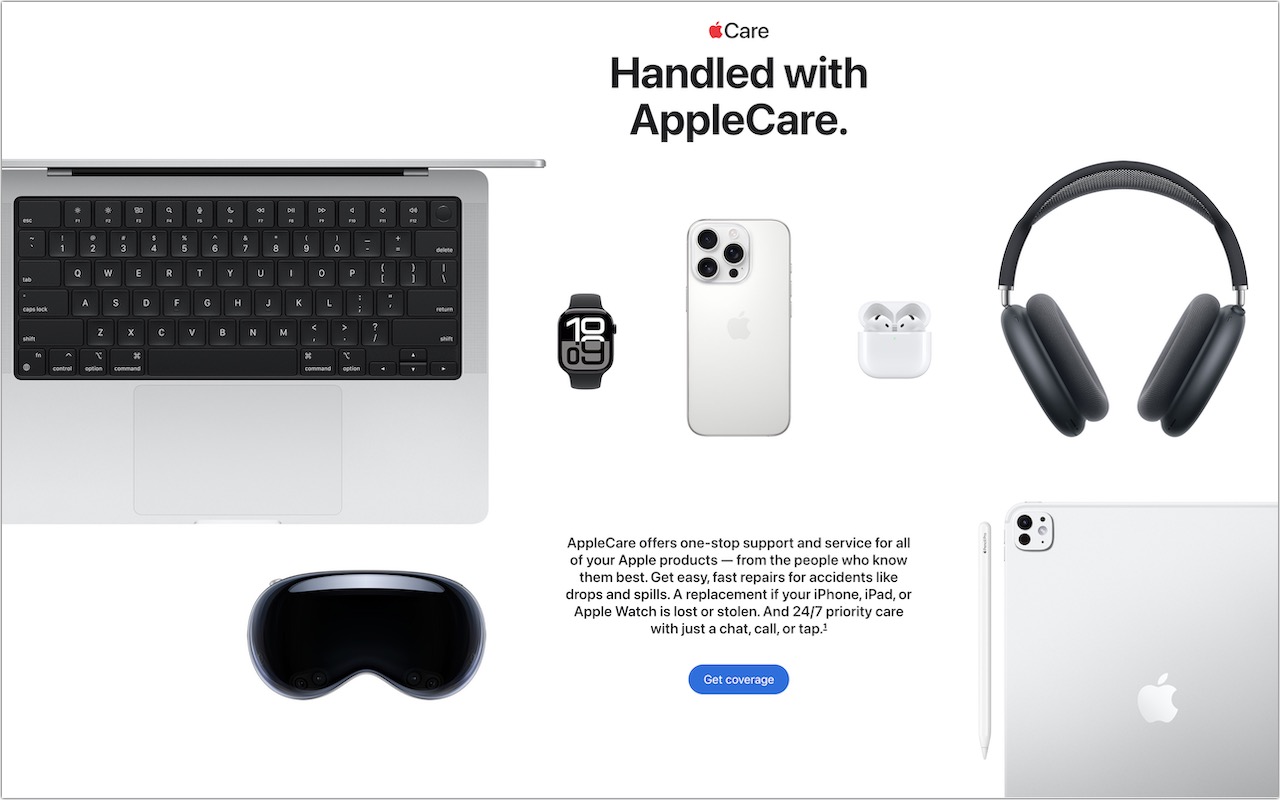
As much as Apple would appreciate you paying extra for AppleCare+ or AppleCare One for every device you buy, it isn’t always the best financial choice. Here’s when AppleCare coverage is worth considering for different devices, roughly ordered by how important the coverage is:
- iPhones: You should strongly consider AppleCare+ with Theft and Loss or AppleCare One. Phones are constantly mobile, easily dropped or lost, and expensive to replace. With coverage, screen or back glass repairs cost just $29, other repairs are $99, and a replacement will set you back only $149. But a protective case is still a good idea.
- Mac laptops: We highly recommend coverage, especially for students. Laptops are frequently mobile, easily dropped or knocked off desks, and particularly vulnerable to damage when closing the screen. A single repair will almost certainly cost more than a year of coverage.
- iPads: Consider coverage based on your model and how you use it. For an inexpensive base-level iPad, coverage may be unnecessary unless it’s for a child or paying for a repair would stretch your budget. For an iPad Air or iPad Pro, think about coverage based on how often you use it in situations where it could be dropped or lost.
- Apple Watches: Coverage is typically unnecessary due to their exceptional durability and relatively low cost. Even with heavy use, a watch is difficult to damage and less likely to be lost than an iPhone since it’s attached to your wrist.
- Desktop Macs and displays: In most cases, you can skip coverage altogether. These devices seldom move and have low failure rates.
- AirPods: You can usually skip coverage. While you’ll probably drop them often, they’re pretty durable. More importantly, they’re relatively inexpensive to replace.
- Apple TV and HomePod: Don’t bother covering them—they’re inexpensive to replace, stay in one spot, and rarely experience hardware failures.
- Apple Vision Pro: Absolutely get AppleCare+ because the Vision Pro is so expensive, and you’ll be putting it on and taking it off regularly, making it easy to drop or knock off the couch.
When AppleCare One Makes Sense
If you own multiple devices, compare the cost of individual AppleCare+ plans against AppleCare One’s consolidated coverage. The $19.99 monthly fee for three devices could represent real savings, particularly if you have high-end devices. For example, individual AppleCare+ coverage for a 13-inch MacBook Pro ($9.99/month) and iPhone 16 Pro ($13.99/month) would total $23.98 per month, making AppleCare One’s $19.99 fee an attractive option, especially if you add a 13-inch iPad Air ($6.99/month) that you wouldn’t otherwise cover. In contrast, AppleCare One wouldn’t make sense if you had a 13-inch MacBook Air ($6.99/month) and an iPhone 16e ($9.99/month), which together would cost only $16.98 per month.
However, it’s not always straightforward. AppleCare One will cost $239.88 per year ($19.99 × 12). In the MacBook Pro and iPhone 16 Pro example, annual AppleCare+ plans would cost $239.98 ($99.99 + $139.99), essentially the same as AppleCare One. For the MacBook Air and iPhone 16e combination, annual payments would reduce the cost to $169.98 ($69.99 + $99.99) compared to the monthly total of $203.76 ($16.98 × 12), making AppleCare One’s $239.88 even less appealing.
Important AppleCare One Considerations
Before purchasing AppleCare coverage, keep these points in mind:
- AppleCare One is a per-user plan for devices signed in to your Apple Account. You can’t add devices purchased for family members if they use them with their own Apple Accounts.
- AppleCare One complains about Macs with multiple accounts; we hope Apple will address this problem soon.
- All plans include service fees for repairs and replacements.
- AppleCare One can cover devices up to 4 years old, although they may need to pass a diagnostic check. AppleCare+ plans can be added only within 60 days of the original purchase date.
- AppleCare One is currently available only in the US, while individual AppleCare+ plans are available more broadly in other countries.
Remember that extended warranties generally benefit the companies offering them more than the customers buying them. Apple wouldn’t offer AppleCare+ or AppleCare One if it weren’t going to make money in the process. Nonetheless, AppleCare can provide valuable peace of mind, especially for mobile devices that face daily risks.
(Featured image by Apple)
Social Media: Wondering if AppleCare is worth it for your Apple devices? Get clear guidance on coverage options, including details about the new AppleCare One plan that could save you money.