Visual-Intelligence-poster-photo

Make the Most of Visual Intelligence on the iPhone

The “visual intelligence” aspect of Apple Intelligence leverages the artificial intelligence capabilities of your iPhone to make what you see through the iPhone’s camera or on its screen interactive and actionable in ways that weren’t previously possible. It’s one of the most useful aspects of Apple Intelligence.

Triggering Visual Intelligence

We offer numerous examples of visual intelligence’s superpowers later in this article, but first, let’s make sure you know how to activate its two modes: camera mode and screenshot mode. Use camera mode to learn more about the world around you; use screenshot mode for help with something on your iPhone’s screen. Here’s how to trigger each mode:

  • Camera mode: Press and hold the Camera Control button on all iPhone 16 models (except the iPhone 16e), all iPhone 17 models, and the iPhone Air. Press the Camera Control again or tap the shutter button to lock the image for visual intelligence. On the iPhone 15 Pro, iPhone 15 Pro Max, and iPhone 16e, which support Apple Intelligence but lack the Camera Control, use the Action button, a Lock Screen button, or a Control Center button.
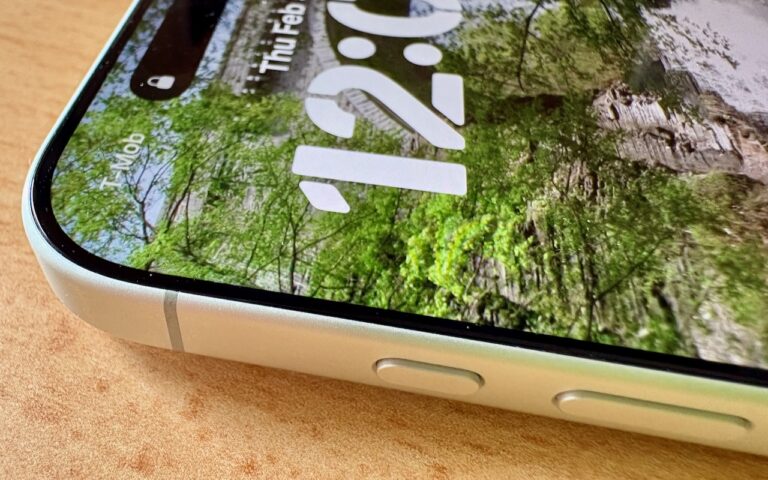
  • Screenshot mode: Simultaneously press the side button and volume up button to display an interactive preview of what was on the screen.

Visual intelligence analyzes the content of your image and provides relevant action buttons based on what it detects. While the Ask and Search options are always available, other buttons appear contextually depending on the content.

  • Ask: Tapping the Ask button lets you pose a question about the image to ChatGPT. (But we’ve found that Apple won’t pass on health-related questions or queries with certain types of sensitive data.)
  • Search: Tapping the search button conducts a Google Image search for similar items. It may also display tabs for search results from other apps, such as Etsy or eBay.
  • Recognized objects: When visual intelligence identifies an object, such as a specific plant or animal, it displays a button that brings up more details.
  • Text: When it detects blocks of text, visual intelligence provides buttons to summarize the text, read it aloud, or translate it.
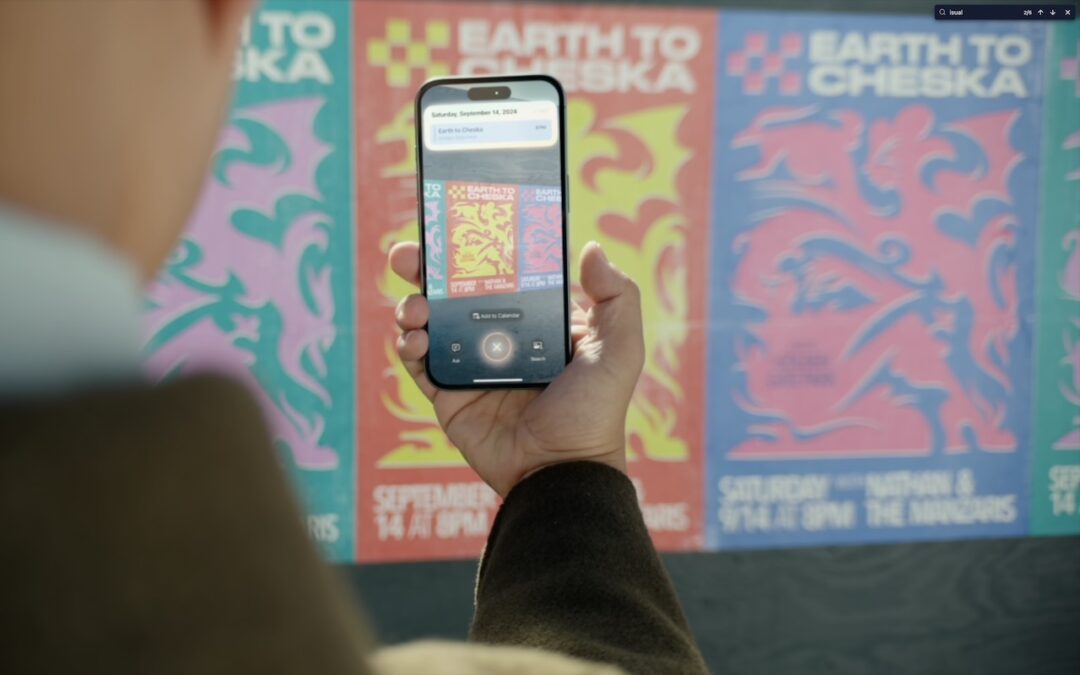
  • Dates: If it detects a date in text, visual intelligence displays an Add to Calendar button.
  • Contact info: When details like email addresses or phone numbers appear in the image, visual intelligence can help you call or message the number, or send email.
  • Addresses: When it identifies a physical address in text, visual intelligence displays a button that opens the address in Maps.
  • URLs: This works in the virtual world as well—a URL embedded in an image prompts visual intelligence to display a button that opens the website in Safari.
  • Businesses and locations: When you capture an image of a business or other location that’s known in Maps, visual intelligence can show hours, menus, reviews, and more.

Real-World Uses for Visual Intelligence

It can be challenging to think of uses for visual intelligence at first, simply because it’s a new way of engaging with the world around you and what you see on your iPhone. We’re used to taking pictures of event flyers we want to attend, doing Google searches for things we see, asking questions of chatbots, and using specialized apps to identify plants and animals—visual intelligence can do all that and more. Here are a few practical ways to use visual intelligence today:

  • Create calendar events: Create calendar events from posters, flyers, invitations, or Web pages. When you point the camera at a poster or take a screenshot of an event page, an Add to Calendar button allows you to create an event directly from the on-screen details.
  • Find business information: Point the camera at a business to retrieve details such as hours, menu/services, phone number, and website. It’s the same information you’ll find in Maps, but it’s easier to pull up using visual intelligence.
  • Search for products: Shopping for something? Once you find an example of what you like—such as this mid-century modern sofa—take a screenshot, circle the picture with your finger, and browse the search results for similar items.
  • Summarize and read text aloud: When you’re faced with a large amount of text, especially if the font size is difficult to read, visual intelligence can provide a summary or even read it aloud. The option to have text read aloud can be particularly helpful for those with low vision.
  • Translate text: iOS offers multiple ways to translate text in unfamiliar languages, including the Translate app, but visual intelligence is often the fastest way to get a quick translation of a sign or placard.
  • Quick object identification: We’ve all wondered what some plant or animal is—using visual intelligence, you can point your camera at it to find out quickly. Just tap the name that appears to get more details.
  • Research questions: Sometimes, you know what you’re looking at but have questions about it. Instead of starting a new search, you can use visual intelligence, tap the Ask button, and pose your question to ChatGPT. Tap the response to ask a follow-up question. If you connect Apple Intelligence to your ChatGPT account in Settings > Apple Intelligence & Siri > ChatGPT, your conversations will be saved in ChatGPT, where you can review and continue the discussion.
  • Manipulate real-world data: Anything that can be photographed or captured in a screenshot can be used as data for other manipulations. For example, you could take a picture of a bookshelf and ask for a list of all the titles, or take a screenshot of a recipe and request the calorie count per serving.

How does visual intelligence compare to apps like ChatGPT, Claude, Gemini, and others? It outdoes them in two ways but falls short in one. Thanks to its deep integration with iOS and the iPhone’s Camera Control, it’s easier to activate visual intelligence than any other app. It also transfers data more effectively to other apps, such as sending URLs to Safari, phone numbers to Phone or Messages, addresses to Maps, and more. However, chatbot apps—which can also analyze photos and screenshots—are more conversational, offer more detailed information, and are willing to discuss potentially sensitive topics that Apple won’t touch, such as health and politics. We use visual intelligence for straightforward tasks, but for more complex situations, we often turn to a chatbot app instead.

(Featured image by Apple)


Social Media: With its visual intelligence feature, Apple Intelligence brings superpowers to your iPhone’s camera and screen. Just point and hold to identify objects, translate text, create calendar events, and get answers about anything you see.

Similar Posts

  • Hey Dora, Follow Orders!

    Last week we talked about how to activate and use dictation to write emails and documents but there is a lot more that you can do. I keep thinking about Scotty from Star Trek when he went back in time and was “**confronted with a Mac Plus**”:https://youtu.be/LkqiDu1BQXY?t=1m8s. He picked up the mouse as natural as can be and said “computer…”. That time is coming and Dictation Commands are already built into your operating system.

    Once you have dictation activated you can activate dictation commands by going to the Accessibility system preference.

    * Choose Accessibility from System Preferences.

    * Choose Dictation from the list on the left side of the Accessibility pane.

    * Click the Dictation Commands button. You can see a list of available commands in the Dictation Commands sheet.

    * A starting set of commands are enabled by default. Additional speakable items like “Open document” and “Click item” are available by enabling advanced commands using these next steps:

    * Select (check) the option to “Enable advanced commands” in the Dictation Commands sheet that appears.

    * Click Done.

    p{text-align: center;}. !http://blog.smalldog.com/images/4710.png!

    After you have enabled advanced commands, you can also create your own commands by clicking the Add Command (+) button. This lets you link a spoken phrase to an app, a menu item, a keyboard shortcut, or an Automator workflow.

    You have enabled Dictation Commands and now you can speak any of the items in this list to perform the related action. Press the Fn key twice, then say a command to make it happen, such as “Search Spotlight for the Cubs score” or “select sentence” or “new document”. Give it a try and pretty soon you will be just like Scotty and the Mac Plus.

    As a shortcut, you can speak the command “Show commands” to see a list of the commands you can say.

  • Last Minute Gift Ideas from Small Dog Electronics

    We know that this can be a stressful time of year and we would like to help you relieve that stress. Beginning *Thursday, December 17th*, our *South Burlington* location will be *open until 9pm* on every night except Christmas Eve and Sunday, 12/27. We will be open from 9am – 5pm on Christmas Eve and 10am – 6pm on Sunday. From now until December 24th *save 25% on all headphones* from Beats, Urbanears, Outdoor Tech and more!

    !http://blog.smalldog.com/images/4623.jpg!

    We also have tons of great *last minute gift giving ideas* for just about anyone on your shopping list. Not sure about picking out the right item? Our knowledgeable staff can guide you in the right direction and remove the stress of last minute gift shopping. For more great gifts visit “www.smalldog.com/macthehalls”:http://www.smalldog.com/macthehalls

    “!http://blog.smalldog.com/images/4622.jpg!:”http://www.smalldog.com/macthehalls

  • Droids, Drones, Scooters, Cars and USB C

    I remember only a couple years ago when drones were new and cutting edge technology. Now, there are huge sections of the show devoted to drones of all sorts: fighting drones, mini drones, paper airplane drones and dancing drones. I don’t know if it is the Star Wars influence but droids were everywhere, including “laundroids” for folding your laundry, grill cleaning droids, window washing droids and all kinds of robots.

    3D printers were new and unique and again whole sections of the show were devoted to “replicators” making everything from iPhone cases to clothing to spare body parts. Several companies were there just to show their filaments for these 3D printers.

    Scooters were everywhere. You know, the ones in the news that have the batteries that blow up. Well, literally dozens of companies were showing their versions and the original Segway had a booth, too. Some one-wheel scooters were there as well as shoes with wheels that zipped you around.

    p{text-align: center;}. !http://blog.smalldog.com/images/4638.jpg!

    Self-driving cars and technology for self driving cars dominated the North Hall and some concept cars were shown, too. My favorite was the Faraday electric car that looked like a single seat batmobile.

    USB-C made its debut at the show with hubs, cables and some USB display port displays, too. I think we will see a lot of USB-C stuff coming up!

    Less prevalent this year was the huge variety of iPhone and iPad cases. There were huge sections last time but while there were several companies showing cases it was toned way down. In their place, power banks of all sorts were being shown in every imaginable shape and size. The Apple battery case, aka the hump, was universally panned but several companies had slim battery cases for the iPhone.

    p{text-align: center;}. !http://blog.smalldog.com/images/4641.jpg!

    I did walk through the TV section but it was not as notable as in past years. The 3D fad has sort of expired and 4K displays are common. I still love the OLED displays, though.

    Other areas that were huge were health care and fitness with a lot of wearable fitness devices and health monitors or all sorts from implantable blood glucose devices to blood pressure cuffs, thermometers and scales. The home automation section was larger than previous years and there were some new HomeKit compatible devices. I liked the NoLok offering of bluetooth compatible padlocks and bike locks that work similar to the Kevo system.

    It was a quick trip out to Vegas but it was certainly worthwhile. I will follow up next week with a bit more.

  • B.B. King – The King of the Blues

    For more than half a century, Riley B. King – better known as B.B. King – defined the blues for a worldwide audience. Since he started recording in the 1940s, he has released over fifty albums, many of them classics. He was born September 16, 1925, on a plantation in Itta Bena, Mississippi, near Indianola. In his youth, he played on street corners for dimes, and would sometimes play in as many as four towns a night. In 1947, he hitchhiked to Memphis, TN to pursue his music career. Memphis was where every important musician of The South gravitated, and it supported a large musical community where every style of African American music could be found. B.B. stayed with his cousin Bukka White, one of the most celebrated blues performers of his time, who schooled B.B. further in the art of the blues.

    B.B.’s first big break came in 1948 when he performed on Sonny Boy Williamson’s radio program on KWEM out of West Memphis. This led to steady engagements at the Sixteenth Avenue Grill in West Memphis, and later to a ten-minute spot on black-staffed and managed Memphis radio station WDIA. “King’s Spot,” became so popular, it was expanded and became the “Sepia Swing Club.” Soon B.B. needed a catchy radio name. What started out as Beale Street Blues Boy was shortened to Blues Boy King, and eventually B.B. King.

    In the mid-1950s, while B.B. was performing at a dance in Twist, Arkansas, a few fans became unruly. Two men got into a fight and knocked over a kerosene stove, setting fire to the hall. B.B. raced outdoors to safety with everyone else, then realized that he left his beloved $30 acoustic guitar inside, so he rushed back inside the burning building to retrieve it, narrowly escaping death. When he later found out that the fight had been over a woman named Lucille, he decided to give the name to his guitar to remind him never to do a crazy thing like fight over a woman. Ever since, each one of B.B.’s trademark Gibson guitars has been called Lucille.

    B.B. was inducted into the Blues Foundation Hall of Fame in 1984 and into the Rock and Roll Hall of Fame in 1987. He received NARAS’ Lifetime Achievement Grammy Award in 1987, and has received honorary doctorates from Tougaloo(MS) College in 1973; Yale University in 1977; Berklee College of Music in 1982; Rhodes College of Memphis in 1990; Mississippi Valley State University in 2002 and Brown University in 2007. In 1992, he received the National Award of Distinction from the University of Mississippi.

    B.B. King came to Vermont many times and I had the pleasure of being at several of his concerts. He died last year at the age of 90 and was performing to sold out crowds right up until he died. B.B. King is gone but the –The Thrill is Gone- lives forever.