Keep Your Apple Devices Cool in the Summer Heat

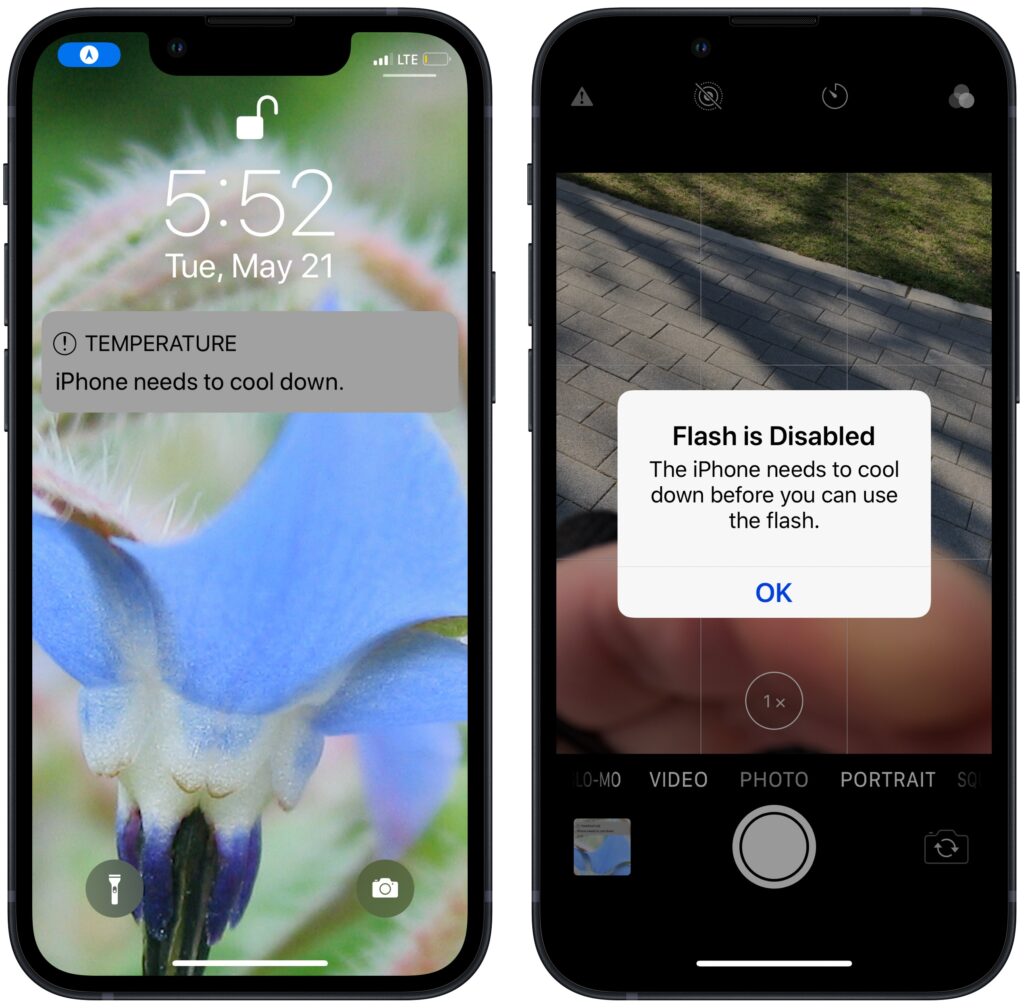
June 2023 was the hottest month on record for the planet, at least until July 2023. Among the many ill effects of such heat are what it does to iPhones, iPads, Macs, Apple Watches, and other digital devices. Excessive heat shortens the overall lifespan of lithium-ion batteries and increases the likelihood of both transient errors and hardware failures—iPhones warn you when they’re getting too hot because of these issues. Apple recommends using nearly all its devices in conditions no hotter than 95ºF/35ºC and storing them in locations that don’t exceed 113ºF/45ºC. (The exception is the adventurous Apple Watch Ultra, which can be worn in temperatures up to 130ºF/55ºC.) The most common place to avoid is a car parked in the sunshine on a hot day, which can easily exceed 130ºF within an hour and rise from there. So don’t leave your iPhone in the car during an afternoon at the beach!
(Featured image by iStock.com/Jorge Garcia Argazkiak)


Social Media: As many parts of the world struggle with record heat waves, remember that excessive heat—operating temperatures over 95ºF/35ºC—is harmful to portable electronic devices like the iPhone, iPad, and Apple Watch. Keep your digital friends cool!

Similar Posts

  • 20 Years of Service.

    !http://blog.smalldog.com/images/4613.jpg!

    Small Dog Electronics has been your local Apple Specialist for 20 years! Not only do we sell the latest Apple products and have some of the most knowledgeable staff around, we offer some of the best *one on one training* and *consulting* services around. Should Santa put something under the tree this year that your just not sure about how you can use it, do not worry, we have got your back and it doesn’t matter where the product came from. Stop into any of our retail stores or give us a call and we will get you getting the most out of your Apple products.

    “!http://blog.smalldog.com/images/4612.jpg!”:http://www.smalldog.com/macthehalls

    Not only do we have great services to help you get the most out of your Apple product, but we have some great deals going on in all of our retail stores *December 9th through the 15th*! Visit any of our retail stores in Rutland, Waitsfield or South Burlington or visit “www.smalldog.com/macthehalls”:http://www.smalldog.com/macthehalls for these deals or more information about what Small Dog services might benefit you.

  • Expand your mind…er..text

    Speed Up Your Fingers with Text Expansion

    With all the advances in computing and communications, it’s amazing that–after nearly 150 years!–we still use the keyboard layout from the world’s first practical typewriter for entering text into our Macs, iPhones, and iPads. Sure there are some improving dictation solutions out there but typing is by far how we input text. But we have not gotten that much better as typists, nor do we enjoy typing more–if anything, we increasingly abbreviate to avoid typing, hence “LOL, BRB, etc.” Text messaging aside, wouldn’t it be nice to be able to type less without compromising meaning or making your text look like it was composed by a trained monkey? Thanks to text expansion features built into OS X and iOS, and extended with third-party utilities, you can.

    For basic text expansion capabilities in OS X, look in System Preferences > Keyboard > Text, and in iOS 9, go to Settings > General > Keyboard > Text Replacement. For both, you can enter a phrase, and a shortcut that expands into that phrase when typed and followed by a space or punctuation character. (Tip: If text expansion doesn’t work in a Mac app like Mail or Safari, make sure Edit > Substitutions > Text Replacement is selected.)

    If you’re signed into the same iCloud account on both your Mac and your iPhone, for instance, the text expansions sync between them automatically. So, you can type “smh” and tap the Space bar to get “Shaking my head!” typed out for you, regardless of what device you’re using. (Another tip: don’t create abbreviations that you will also want to type normally. It might seem like a good idea to use “np” for “No Problem,” but that will get in the way of talking about Nurse Practitioners.)

    With such a useful feature built into OS X and iOS, why would you want to spend money on a third-party utility, like “**TextExpander**”:https://smilesoftware.com/textexpander (Mac and iOS), “**Typinator**”:http://www.ergonis.com/products/typinator/ (Mac), or “**TypeIt4Me**”:http://www.ettoresoftware.com/products/typeit4me/. Unfortunately, OS X’s text expansion feature doesn’t work in all apps (it likely won’t work if the app lacks the Edit > Substitutions > Text Replacement menu command). The interface for creating new substitutions is cramped and hard to work with, you can’t configure the trigger characters that cause abbreviations to expand, and you can’t include text with styles, variable text like the date, or even graphics.

    That’s where text expansion utilities shine. They can include styled text and graphics in expansions, insert the current date and time, respect case when expanding abbreviations, include the contents of the clipboard in expanded text, automatically fix common typos, create fill-in-the-blanks snippets that you customize on each expansion, and much more.

    Here are some ideas for the kinds of things you might want to turn over to your computer for typing:
    Long or complex words or phrases, such as scientific names. Aedes aegypti, anyone?

    *Your address, phone number, and email address. One of my favorites is “@d” which inserts my email address. I get real tired of typing email address, phone numbers, etc. Text expansion speeds that up!

    *Boilerplate text for common email replies.

    *The current date and/or time.

    *Special characters, so blb could expand to the British pound symbol £.

    *Unix commands for Terminal, such as using ssh to log in to a remote computer.

    I am sure you can come up with dozens that might work for you and speed up your typing. So think about what bit of text you might want expand automatically and give text expansion a try today!

  • Reminders (Finally) Adds Time Zone Support

    Apple’s latest operating systems have eliminated a longstanding annoyance for frequent travelers: the lack of time zone support in Reminders. If you had…