Is Your Mac Running Low on Disk Space? Here’s How to Delete Unnecessary Files

Between apps, photos, videos, music, and downloads, it’s easy to fill up your Mac’s drive, particularly one with just 128 or 256 GB of drive space. macOS warns you when you get too low on space, but those warnings may come late—for optimum Mac performance, we recommend you keep at least 10–20% of your drive free for new downloads and virtual memory swap files. There are excellent utilities that help you find and delete unnecessary files, such as the free GrandPerspective, the $9.99 DaisyDisk, and the $14.99 WhatSize, but Apple’s built-in storage management capabilities will likely be all you need.

Apple first introduced its Storage Management tool in the System Information app in macOS 10.12 Sierra, making it accessible from the About This Mac dialog. Starting in macOS 13 Ventura, Apple moved those capabilities to System Settings > General > Storage, providing a quick overview of your drive usage at the top. Hover over each colored bar to see how much space is taken up by a particular type of data. The light gray space at the end of the bar is what’s still available.
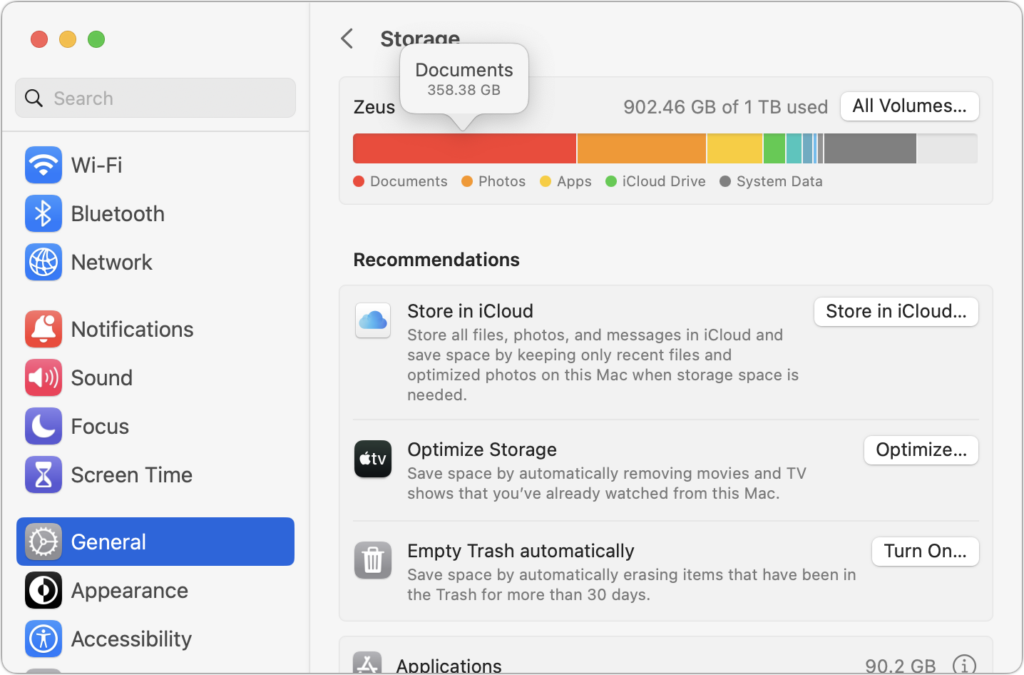
Below the graph, macOS may offer some recommendations for reducing storage over time, but they come with tradeoffs. Storing files in iCloud and optimizing Apple TV videos will replace local files with stubs pointing at a version stored in the cloud. That’s OK, but you then have to download the original before you can use it. Deleting files automatically after they’ve been in the Trash for more than 30 days is also fine but could have undesirable results if you ever want to recover older files from the Trash. Enable these if you wish, but the real work happens farther down on the screen, where you find all the categories of files you can explore. Depending on what apps you use, they will vary a bit between Macs, but they correspond to the colored bars you saw in the storage graph. Double-click each one to see what it displays.
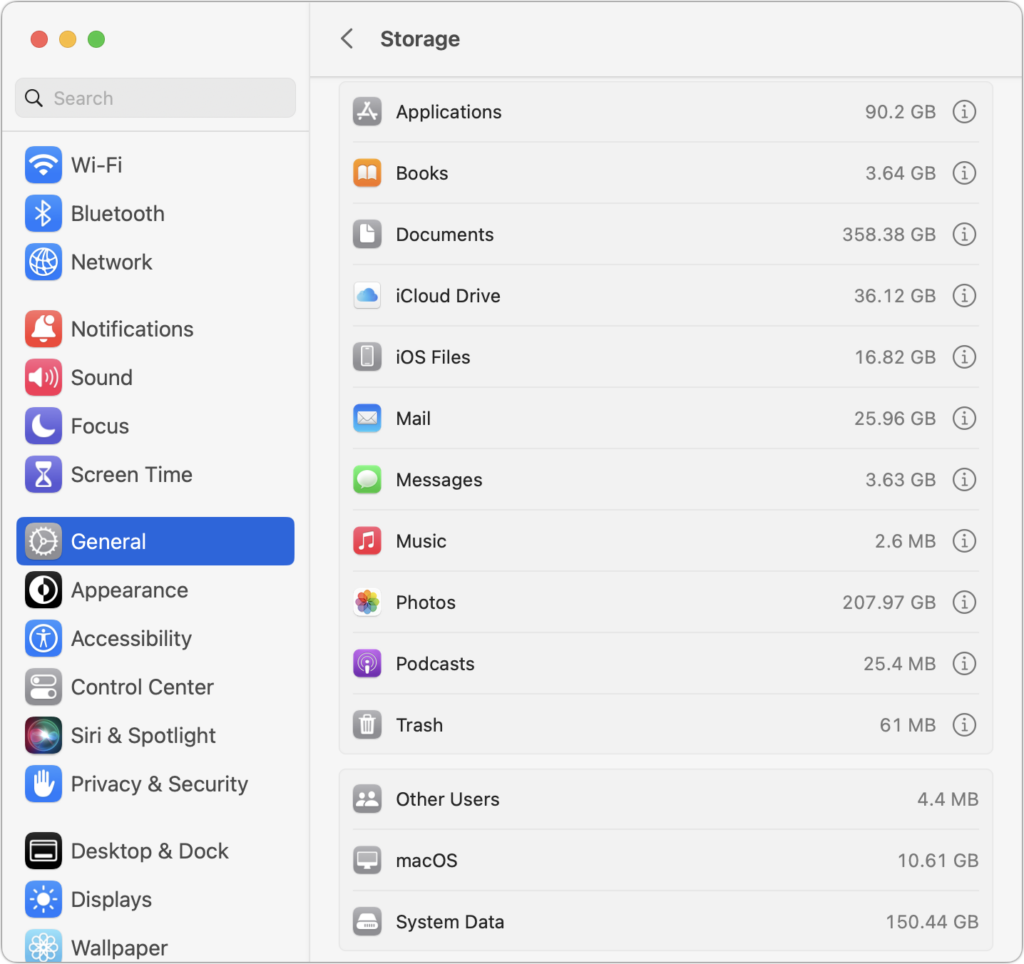
For a few app-specific categories, like Mail and Podcasts, you merely learn how much space the app’s data occupies—to save space, you must delete unnecessary data from within the app itself. iCloud Drive and Photos are similar but also let you enable space optimization, which stores only placeholder files or smaller optimized photos on the Mac, leaving the originals in iCloud for later downloading whenever you access them.

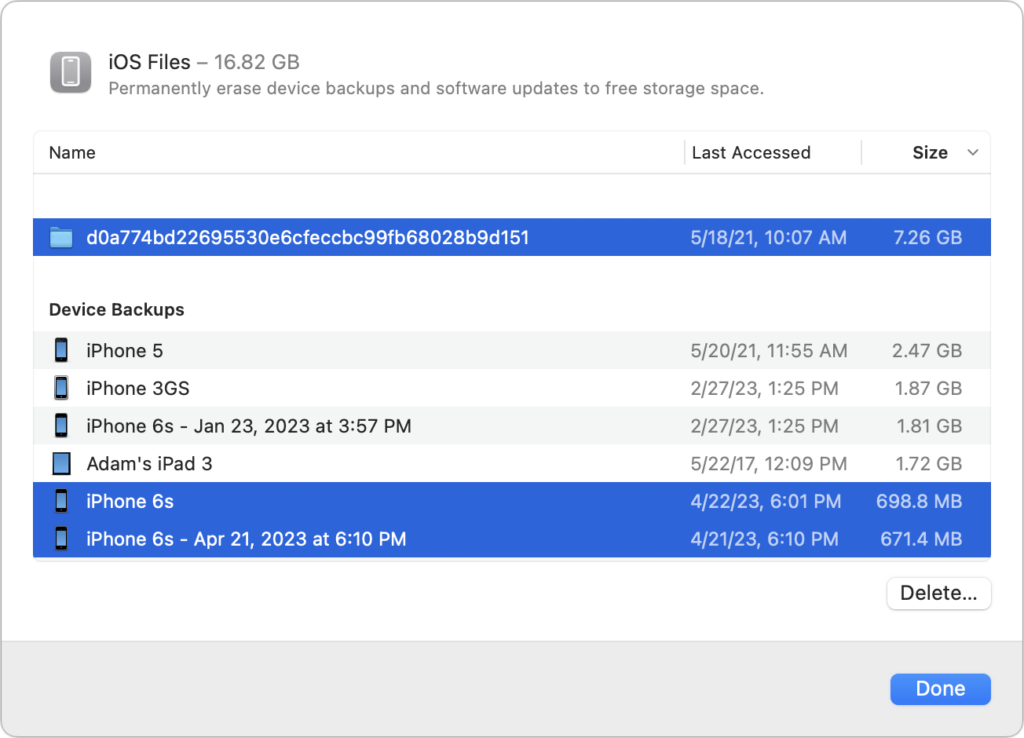
More interesting are the Applications, Documents, and iOS Files categories, each of which may reveal gigabytes of unnecessary data. iOS Files, for instance, shows any device backups and software updates stored on your Mac’s drive. It’s worth keeping the latest backup of devices you still use, but delete any older backups and updates that are just wasting space—well over 8 GB in the screenshot below.
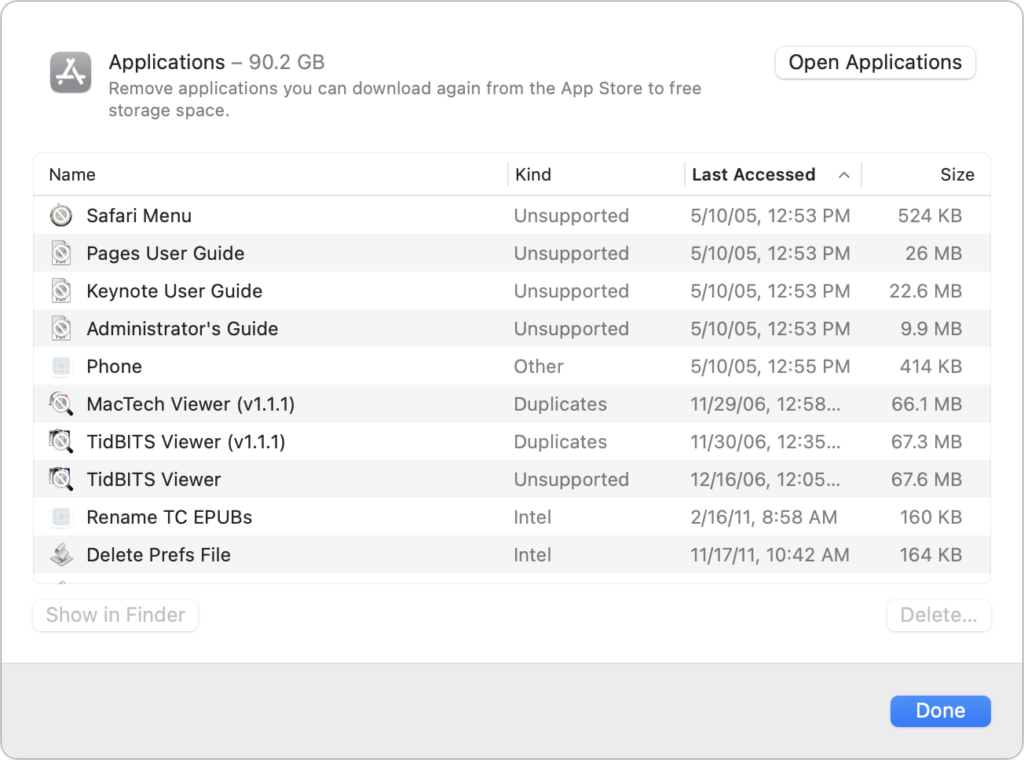
The Applications category lists your apps and is sorted by size by default. But try clicking the column header for Kind and scrolling down. You can probably delete most apps tagged as Unsupported, Duplicates, or Older Versions. Similarly, click the Last Accessed column header to see which apps you haven’t launched in years. Many of them can probably go, too.
In Documents, you’ll see four buttons: Large Files, Downloads, Unsupported Apps, and File Browser.

  • Large Files shows huge files regardless of where on your drive they’re located.
  • Downloads shows you the contents of your Downloads folder, much of which you likely don’t need.
  • Unsupported Apps lists any PowerPC or 32-bit apps that won’t run on your Mac. You can delete them.
  • File Browser provides a column view sorted by file size and shows sizes next to each item. It’s great for trawling through your drive to see what’s consuming all that space.
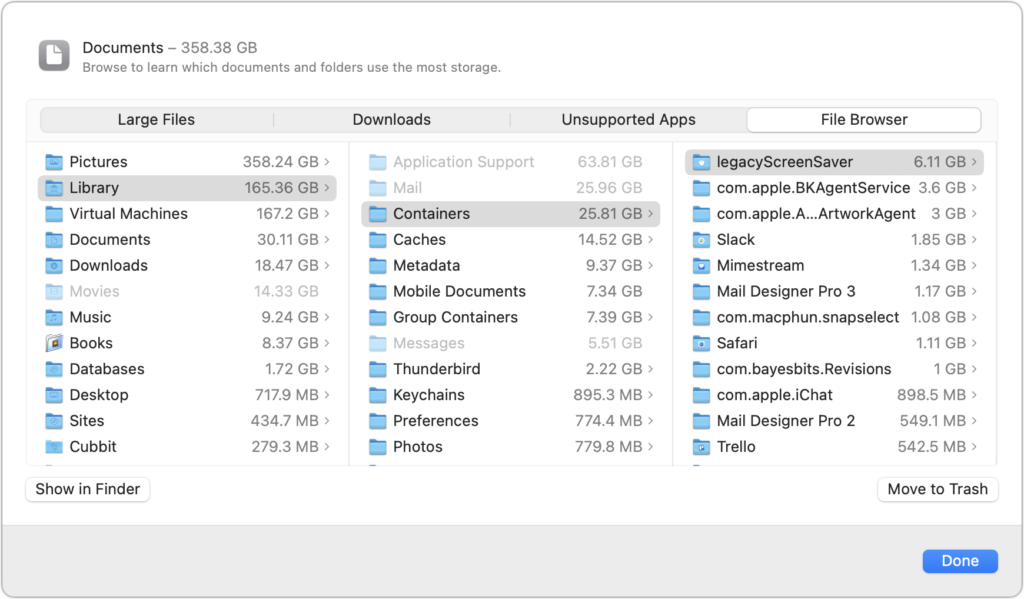
In any of these views, click Delete or Move to Trash to remove the file or Show In Finder to see it in its native habitat, which may help you decide if you should keep or delete the file. To delete multiple files at once, Command-click or Shift-click to select them and then click Delete to remove them all at once.

You may find it worth using GrandPerspective to get a visual overview of how space is used on your drive. After scanning, which can take a long time, it uses tiny colored blocks to represent files, collecting multiple blocks into bigger rectangles to show folder size. Toolbar buttons let you open, preview with Quick Look, reveal location, or delete whatever file block you click. Look in the status bar at the bottom of the window to see the path to the file.

In the screenshot below, the big boxes of color are massive virtual machine disk images, and the selected folder outlined in white at the right contains desktop pictures downloaded by an app that rotates them regularly—gigabytes of old files that can easily be deleted.
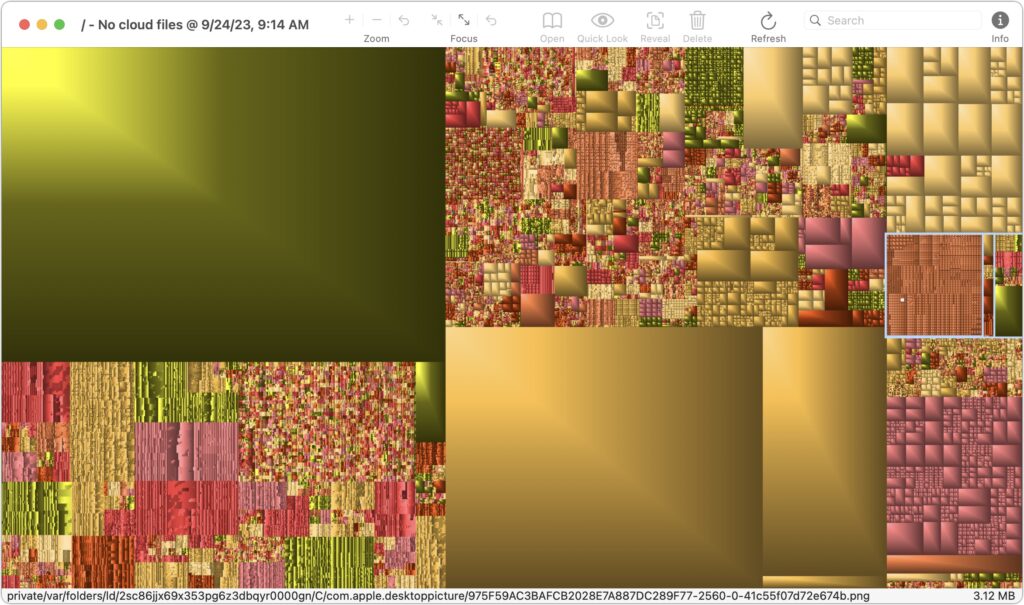
If your Mac’s drive has less than 10% free space, consider using Apple’s storage management capabilities—perhaps supplemented with GrandPerspective or another utility—to find and delete files that are wasting space.

Two final notes: Don’t get too wrapped up in the exact numbers in the storage graph matching what the Finder reports, and give the Mac some time to update its free space amounts after deleting files directly or emptying the Trash.

(Featured image based on an original by iStock.com/Bet_Noire)


Social Media: Is your Mac low on drive space? Learn how to use Apple’s built-in storage management capabilities—perhaps supplemented with a third-party utility—to find and delete gigabytes of unnecessary files.


Similar Posts

  • Sonos and Apple Music

    A little over a week ago things became official: Apple Music is now available to those who use “**Sonos.**”:http://www.smalldog.com/category/?mmfg%5B0%5D=Sonos For some of us this wasn’t a huge announcement. I have been using the beta version now for several months and have been enjoying my Apple Music playlists as well as my own personal play lists on my iPhone. I have been a huge fan of Sonos for about two years and not being able to listen to Apple Music was my one complaint about the system, but not anymore!

    Apple Music isn’t the only great thing about Sonos either, did you know that you can also control your Sonos system from your computer? I admit, I didn’t realize this at first. With a huge focus on how easy the system is to set up and control from your iPad or iPhone, this is one feature that’s often overlooked. With a simple “App download”:http://www.sonos.com/controller-app on your computer, you can open up your entire (in most cases) music library for listening through your Sonos system. Another great feature of the Sonos App is the ability to set a sleep timer. If your someone who enjoys falling asleep to music, but prefers it doesn’t stay on all night this is a huge feature even if it is a bit hidden. The more info icon within the Sonos App hides a lot of features, including the sleep timer.

  • Emily's Favorite Mac Accessories

    I am the kind of gal that admittedly likes gadgets and accessories just because they are cool, I don’t even need to have a use for them to make me want one! If there is a new iPad case, a new speaker, a new product announcement from Apple, I want it. This has resulted in a vast collection over the years of all kinds of gadgets, gizmos and some stuff that I just hang onto for no good reason other than I might need it one day. Some things have been a bit of a fad, others have stood the test of time. Over the years I have found that I few items in my collection of gadgets that have either become invaluable or the kind of item that really stands the test of time.

    p{text-align: center;}. !http://blog.smalldog.com/images/4651.jpg!

    My first must have and favorite gadgets are portable bluetooth speakers, and I have had several over the years. The battery powered speakers from Skullcandy I had were one of my most favorite pocket sized speakers! It took up little room in my bag and I could have my music wherever I wanted. You never realize how much you miss having music wherever you go until you start to use these kinds of speakers and then suddenly don’t have them! I eventually outgrew my little Skullcandy speakers and upgraded to a larger but still portable Altec system. This speaker system went everywhere with us. In fact, it still travels with us in our camper even though it features a 30 pin connection for our phones. What I loved most about this set up was that it had a rechargeable battery, so unlike my little Skullcandy speakers I didn’t need to worry about carrying around spare AA batteries. It also allows me to use a 3.5mm headphone cable and an FM radio. I recently started to use the “**Outdoortech Turtle Shell**”:http://www.smalldog.com/product/85338/outdoor-tech-turtle-shell-2-0-rugged-wireless-boombox-electric-blue speakers to replace the old Skullcandy speakers for immediate portable sound, and as a huge bonus this speaker is bluetooth, something none of my previous portable units had. I will admit, I still haven’t found a better replacement for my aging Altec portable speaker as far as sound quality goes, but I will also admit finding a newer solution would require my having to let go!

    My second must-have gadget is an airport express base station. You might be surprised that it is not the Airport Extreme. Why do I love the “**airport express**”:http://www.smalldog.com/product/80932/apple-airport-express-base-station-802-11n-wi-fi so much? Well part of it might be a bit nostaglic. It was my first introduction into wireless speakers. How cool was it to plug in my Harmon Kardon speakers, simply tap my iPhone while sitting on the couch, and my speakers came to life like magic? But the great features don’t stop there. It’s a really powerful and inexpensive wireless router. For many, we don’t have huge areas we need to cover with wireless. Maybe it’s just a small apartment, or perhaps your house just isn’t that big. When I first started to use the airport express the one draw back was that the only ethernet port had to be designed (in most cases) for your internet modem, but in recent years Apple has added a second ethernet port allowing for more flexibility and versatility with this little gem.

    p{text-align: center;}. !http://blog.smalldog.com/images/4650.jpg!

    iPad and iPhone cases are another huge weakness of mine. I probably have no less then five cases for my phone and for my iPad. You could say I collected cases like some girls collect shoes! But on a serious note, this is a very important accessory for your iPhone or your iPad. Some folks prefer form fitting and minimal, others prefer a more rugged case. I have come to prefer several cases. However, I think cases that combine both slim form factor and serious protection are the “**Lifeproof**”:http://www.smalldog.com/wag900002119 cases. I have one for my phone and one for my iPad. What I love most of them is that they come off easily! I don’t always want a heavy duty case on my devices, but have found that many cases that offer greater levels of protection end up being very difficult to take off your device.

  • Adjust AirPods Options in the Settings App

    If you sometimes have trouble configuring your AirPods, here’s the trick. The AirPods settings screen is available only when the AirPods are connected…

  • Missed an Alert? Check Notification Center

    iOS, iPadOS, and macOS all let you specify whether any given app should show no notifications, temporary banners, or persistent alerts: look in…