Understanding New MacBook Battery Charging Features
The just-released macOS 26.4 Tahoe introduced two battery-related features for MacBook users, helping them understand and control MacBook charging. A Slow Charger indicator now appears in the battery status menu and in Battery settings when your Mac is connected to a charger that isn’t delivering the minimum recommended wattage. More significantly, a new Charge Limit feature lets you manually set a ceiling for what the Mac considers a full charge—between 80% and 100%.

These additions are the latest in Apple’s ongoing effort to extend battery lifespan. Understanding how these features work—and when to override them—can reduce frustration and help keep your MacBook battery healthy.
Why Apple Limits Charging
A battery’s lifespan depends on its “chemical age,” which is affected by charging patterns and temperature history. Lithium-ion batteries degrade faster when they spend extended time at full charge or when they generate excess heat during charging. As batteries chemically age, they hold less charge and deliver reduced performance.
Apple’s solution is to reduce the time batteries spend fully charged. This is particularly important for MacBooks that spend most of their time plugged into power at a desk—a scenario that would otherwise keep the battery at 100% and generate heat, both of which shorten battery life.
Optimized Battery Charging
Apple has rolled out optimized battery charging features on the Mac. The Optimized Battery Charging algorithm uses on-device machine learning to learn your daily charging routine, aiming to ensure your Mac is fully charged by the time you actually need to disconnect it from power and leave for the day.
If your MacBook spends most of its time plugged in at your desk, macOS may keep the battery at 80% and charge to full only when it predicts you’ll need to use it away from a power source. When Optimized Battery Charging is holding your battery at 80%, you’ll see Charging On Hold in the battery status menu. (The iPhone, iPad, and Apple Watch have similar features that learn when you typically unplug and delay charging past 80% until shortly before that time.)
The New Charge Limit Feature
Charge Limit in macOS 26.4 takes a different approach. Rather than relying on machine learning to predict when you’ll need a full charge, it lets you explicitly set a maximum charge level. Your Mac will charge to within a few percentage points of your chosen limit, then stop. If the battery drops more than 5% while connected to power, charging resumes until it reaches the limit again.
To set a charge limit, go to System Settings > Battery, click the ⓘ next to Charging, and choose a limit between 80% and 100%. When the limit is active, the battery status menu shows Charged to X% Limit.

Using Charge Limit is ideal if your MacBook rarely leaves your desk. Setting an 80% limit reduces battery wear while ensuring you always have enough charge for brief periods away from power.
When You Need a Full Charge
What about when you want your MacBook’s battery to be at full strength for an unpredictable day away from power, such as for a long flight? You can override both Optimized Battery Charging and Charge Limit when you need maximum battery life:
- For immediate needs: Click the battery icon in the menu bar and choose Charge to Full Now. Your Mac will charge to 100% regardless of current settings.
- To disable limits temporarily: In System Settings > Battery, click the ⓘ next to Charging, turn off Optimized Battery Charging, and click the Turn Off Until Tomorrow button when prompted. Also set Charge Limit to 100%.
- To disable limits permanently: Follow the same steps as the bullet above, but click the Turn Off button in the warning dialog instead. Also set Charge Limit to 100%. Remember, this will likely reduce your battery’s overall lifespan.
(Similar charging limits and workarounds also apply to the iPhone and Apple Watch. On the iPhone, go to Settings > Battery > Charging and turn off Optimized Battery Charging. For the Apple Watch, look in Settings > Battery > Battery Health on the watch itself.)
About That Slow Charger Warning
The new Slow Charger indicator helps explain why your MacBook might be charging slowly or even draining while in use. If the power adapter doesn’t deliver enough wattage for your Mac model, you’ll now see a warning in the battery menu and in System Settings > Battery.

You can check your current power adapter’s wattage by reading the fine print on the charger itself, or by opening the System Information app and checking the AC Charger section in the Power screen. It’s safe to use an adapter with a higher wattage than required, but don’t go below the wattage of Apple’s included adapters.
For optimal charging, use an adapter that delivers at least the minimum wattage recommended for your Mac:
- MacBook Neo: 20 watts (no fast charging available)
- 13-inch MacBook Air: 30 or 35 watts standard, 67 watts for fast charging
- 15-inch MacBook Air: 35 watts standard, 70 watts for fast charging
- 14-inch MacBook Pro: 70 watts standard (or 96 watts for M4 Pro and M4 Max chips); 96 watts for fast charging
- 16-inch MacBook Pro: 140 watts for both standard and fast charging
Using your iPhone’s 20W charger with a MacBook Pro might technically work, but you’ll now be warned that it’s not delivering adequate power.
Finding the Right Balance
Apple’s battery optimization features represent a trade-off between immediate convenience and long-term battery health. For most users, leaving Optimized Battery Charging enabled makes sense—it learns your patterns and charges to full when needed. The new Charge Limit feature offers more explicit control for those who prefer it, particularly those whose MacBooks rarely leave the desk and can be locked at 80%.
If you frequently fight these features, you may have an unpredictable schedule that the algorithms can’t anticipate. In that case, consider turning off Optimized Battery Charging or setting a higher Charge Limit. Just remember that keeping your battery at 100% more often will shorten its lifespan—a trade-off that might be acceptable depending on how long you plan to keep your laptop.
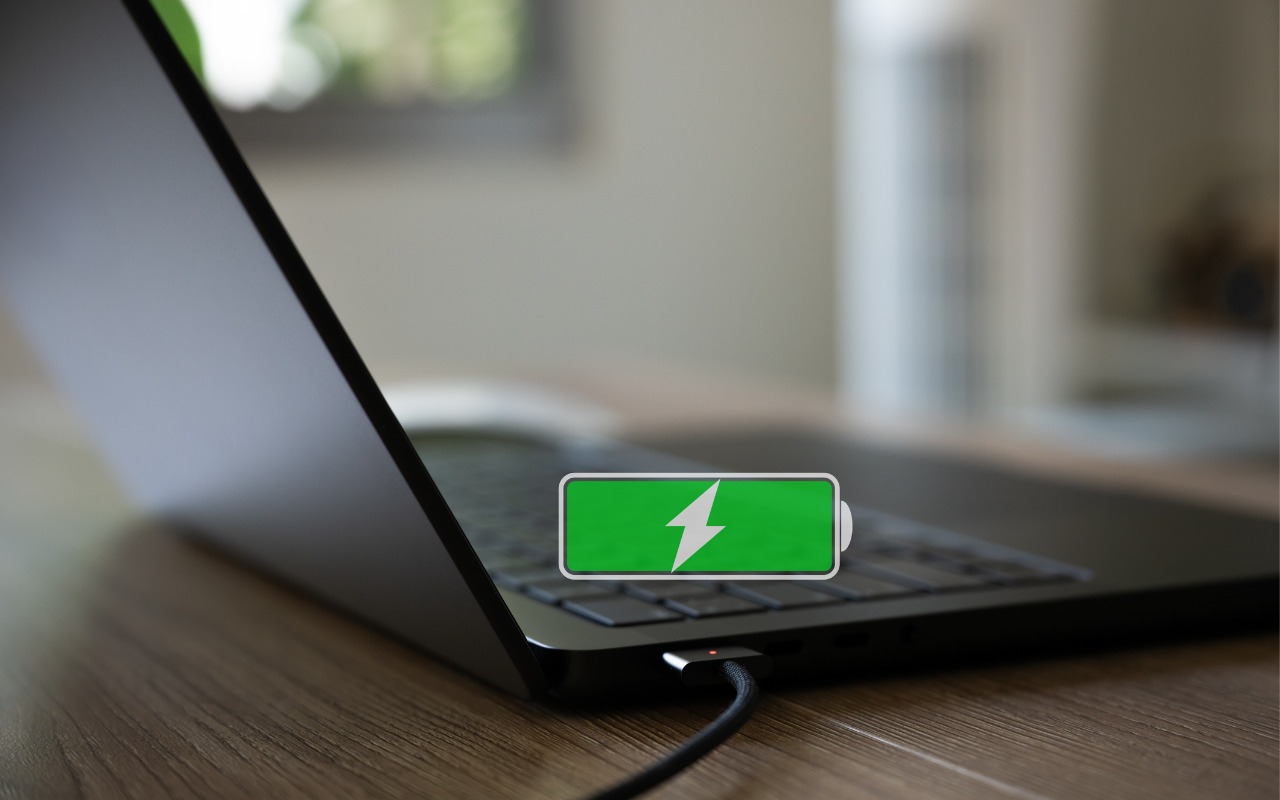
(Featured image by iStock.com/shirophoto)
Social Media: Is your MacBook’s battery stuck at 80%? That’s Apple protecting your battery’s long-term health. macOS 26.4 adds new controls, including Charge Limit and a Slow Charger warning. Learn how these features work—and when to override them.