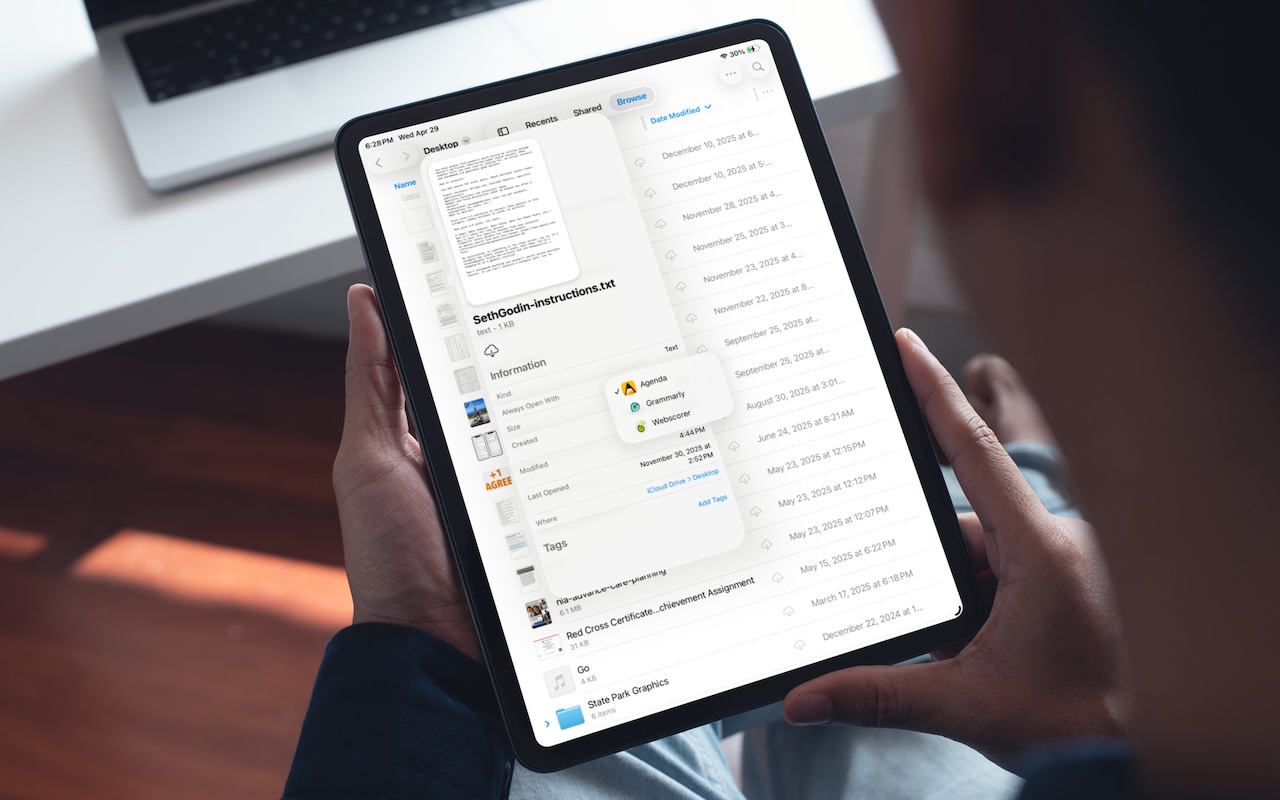
Choose Default Apps for File Types in iOS 26 and iPadOS 26

On the Mac, every file type opens in a particular app by default, but it’s easy to open a PDF, image, or text file in a different app. In the Finder’s Get Info window, you can also reset the default app so that, for example, JPEGs open in Photoshop or Affinity instead of Preview. That’s all now possible in iOS 26 and iPadOS 26 as well. In the Files app on an iPhone or iPad, touch and hold a file to bring up a menu. Tap Open With, then select an app to open the file once in a different app without changing the default. To reset the default app for that file type, tap Get Info, then select an app from the Always Open With list.

(Featured image based on an original by iStock.com/Tippapatt)


Social Media: iOS 26 and iPadOS 26 finally let you choose which app opens your files—just like on the Mac. Here’s how to use Open With and set new defaults in the Files app.

Similar Posts

  • Apple's Not The Only Game In Town

    I have the pleasure of being able to not only work behind the scenes here at Small Dog, but also on the front line with our customers. This past week while working in our “**Rutland, VT store**”:http://www.smalldog.com/rutland I had two customer interactions that brought an interesting subject light when talking about iPads. We have seen over the last two years or so there has been a slight drop in the number of iPads sales in comparison to when they first hit the market back in in April of 2010 and a lot has changed since then. There are more tablets out there than ever before including ones that run Android, Windows, Kindle and more.

    The draw away from Apple for some customers is that in many cases the same Apps and functions you can do on an iPad can be done on a another device and for less money. It’s easy to be persuaded by these draws and overlook some some other key aspects. What makes Apple stand apart is often pushed aside temporarily when comparing these products. With Apple everything is designed to work together. iCloud can sync all your information across multiples devices, from your iPad to iPhone to your computer. “**Handoff**”:https://support.apple.com/kb/PH18754?locale=en_US allows you to start a project on your iPad and then with a quick tab, pick up that project on your computer. Wanting to show your friends the pictures from your weekend trip to the mountains? With photo stream it doesn’t matter what Apple device you’ve picked up, your photos will be there. Have a great home video of your child or grandchild and just have to show everyone who came to Friday night dinner? No problem. With the Apple TV you can airplay that video and save yourself from passing your phone around the room for everyone to see. Another benefit? Apple devices last a long time! I have been using the original iPad mini for four years now and each week I interact with customers who are also using iPads that are two or three years old with no issues.

    In addition to all the integration, we’ve seen price drops for the iPads over the last several years as well. No longer do you need to spend $500 or more for an iPad. You can get an “**iPad Mini 2**”:http://www.smalldog.com/product/84491/ipad-mini-2-16gb-space-gray starting at **$269** and “**iPad Air**”:http://www.smalldog.com/product/86240/ipad-air-16gb-wi-fi-silver for **$399**. So the next time your considering tablet options, take a few moments to consider that while Apple isn’t the only game in town anymore, it’s still the leader of the pack!

  • Keep Your Passwords!

    You have a password for the online banking, one for your Apple ID, one to log into your retirement amount. Your password for your bank has to have have at least one numeric number, but can’t start with a number and it can’t have any more than two of the same characters found in your username. Your retirement account must include at least 3 numbers and one special character but they can’t be consecutive.

    Does this sound familiar? In the perfect world we would only need one password, but unfortunately for security purposes and as hackers get better at what they do password strength has become critical and part of our everyday lives. The hassle with this is that most sites have their own sets of rules for password strength leaving many of us to peck away at our keyboards or devices in a sometimes endless game of “remember how you manipulated your favorite password 16 different ways and can’t remember if your banking site used the password with the capitalization or the one with the ampersand”.

    p{text-align: center;}. !http://blog.smalldog.com/images/4644.jpg!

    For a very long time I will admit my method of keeping track of my usernames and passwords was the stickies program on my Mac, much to the dismay of our IT manager! While stickies are easily accessed they are not secure and I do not recommend this method. Where you should keep them is in your keychain. You can access your keychain through applications and then utilities. Once you are in your keychain you can manually add preferred sites, accounts and passwords you wish to store. Another huge benefit is secure notes. Secure notes allow you store additional confidential information. Keychain is safe and secure because in order to view any of the passwords stored there you need to enter your administrator password. Within keychain you can make sure to safely and securely keep your passwords, and when you forget if you needed that capitalization or ampersand in your password you can simply open keychain and enter into the search field the website for which you need to confirm the password.

    Now what if you don’t have a mac? The loss of passwords, and most often your Apple ID password is a huge concern with users of iOS devices only. Luckily there is an easy solution for that, iCloud and “iCloud keychain.”:https://support.apple.com/en-us/HT204085 Simply go to settings, iCloud and then select keychain. Your iOS device will begin to store your logins and websites. Additionally you can add specific websites and passwords manually to your phone or iPad under **safari** and then selecting **passwords**. This is also where you would look if you can’t remember login information.

    Recording safely your logins and passwords is an often overlooked step, especially when users of iOS devices accidentally have the device damaged or lost. Saving your passwords safely and using iCloud keychain can avert your being logged out of accounts.

  • Find Some Ham Amidst Your Email Spam

    Spam filters work pretty well—99% of the messages in your spam mailbox are probably spam. But it’s frustrating to miss an important message…