Watch Out for PayPal Invoice Phishing Scams

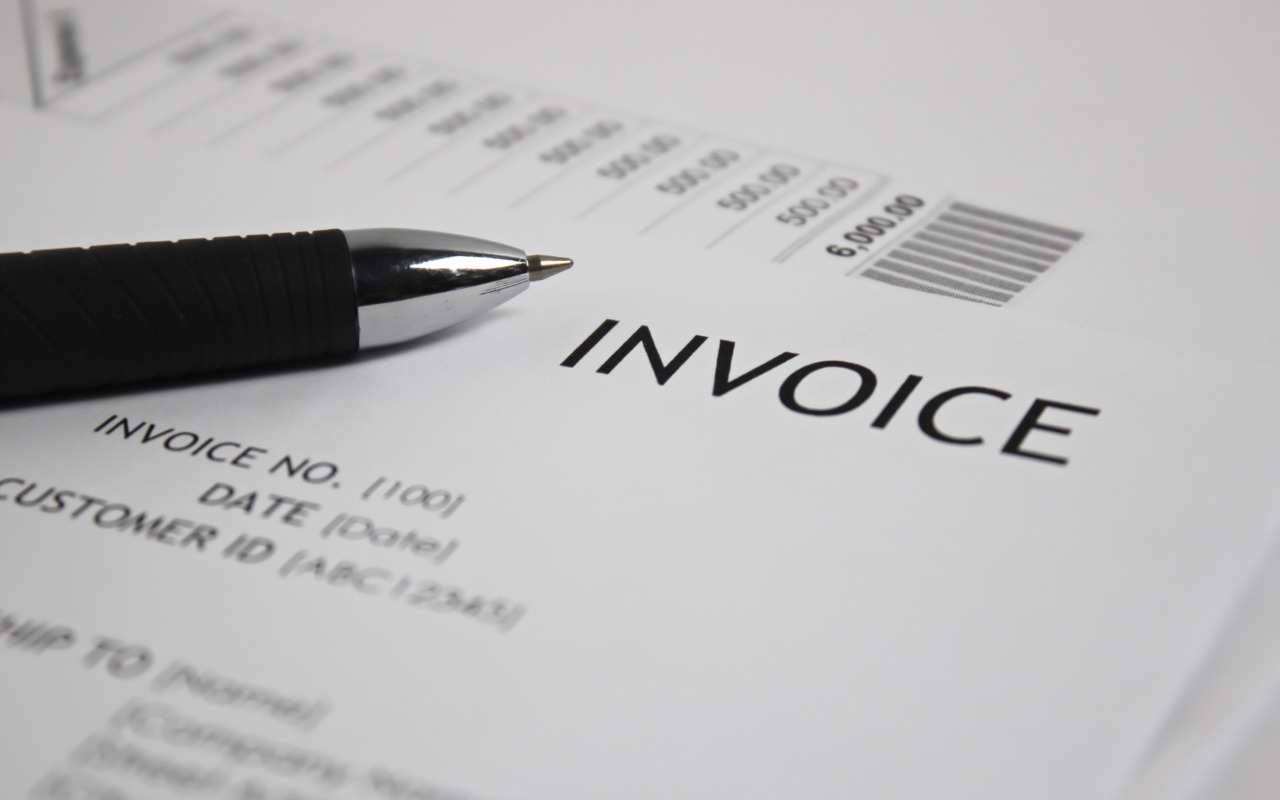
We’ve seen an uptick in fake invoices from scammers using PayPal. Because they’re being sent through PayPal itself, spam filters won’t catch them, and they have few of the usual markers of phishing email (but look for sketchy names and email addresses at the top). Some are even forged to appear as if they come from Apple. Never pay a PayPal invoice that you can’t tie directly to something you’ve ordered, and don’t call the number listed—the scammer will try to convince you that the invoice is real. If you receive one of these invoices, click the “Report this invoice” link at the bottom to help protect others who might have received it, and forward the message to phishing@paypal.com. Don’t mark the invoice as spam, though, since that will train your email client to be suspicious of legitimate messages from PayPal.

(Featured image by iStock.com/Moostocker)


Social Media: Beware of PayPal invoice scams that might even appear to come from Apple. Should you receive one, report it to PayPal to help protect other people, but don’t mark the message as spam.

Similar Posts

  • Reminders (Finally) Adds Time Zone Support

    Apple’s latest operating systems have eliminated a longstanding annoyance for frequent travelers: the lack of time zone support in Reminders. If you had…

  • Hey Dora, Follow Orders!

    Last week we talked about how to activate and use dictation to write emails and documents but there is a lot more that you can do. I keep thinking about Scotty from Star Trek when he went back in time and was “**confronted with a Mac Plus**”:https://youtu.be/LkqiDu1BQXY?t=1m8s. He picked up the mouse as natural as can be and said “computer…”. That time is coming and Dictation Commands are already built into your operating system.

    Once you have dictation activated you can activate dictation commands by going to the Accessibility system preference.

    * Choose Accessibility from System Preferences.

    * Choose Dictation from the list on the left side of the Accessibility pane.

    * Click the Dictation Commands button. You can see a list of available commands in the Dictation Commands sheet.

    * A starting set of commands are enabled by default. Additional speakable items like “Open document” and “Click item” are available by enabling advanced commands using these next steps:

    * Select (check) the option to “Enable advanced commands” in the Dictation Commands sheet that appears.

    * Click Done.

    p{text-align: center;}. !http://blog.smalldog.com/images/4710.png!

    After you have enabled advanced commands, you can also create your own commands by clicking the Add Command (+) button. This lets you link a spoken phrase to an app, a menu item, a keyboard shortcut, or an Automator workflow.

    You have enabled Dictation Commands and now you can speak any of the items in this list to perform the related action. Press the Fn key twice, then say a command to make it happen, such as “Search Spotlight for the Cubs score” or “select sentence” or “new document”. Give it a try and pretty soon you will be just like Scotty and the Mac Plus.

    As a shortcut, you can speak the command “Show commands” to see a list of the commands you can say.