_Dear Friends_,
Well I didn’t win the Powerball so I guess I have to stick with my day job a bit longer. Vermont finally got some winter weather and more snow is in the forecast. It has even gotten a bit cooler down here in the Keys where when it dips below 70° F the down coats and shoes come out.
I am still struggling a bit with tropical gardening. A large caterpillar ate the leaves off one of my tomato plants overnight and for some reason I cannot get my citrus trees to blossom. I keep feeding and watering them in the hopes that my Key Limes, Myers lemon and Naval oranges will blossom but they seem to just make greenery. We did discover that bananas love coffee grounds and since Grace and I produce a lot of coffee grounds those plants are doing well.
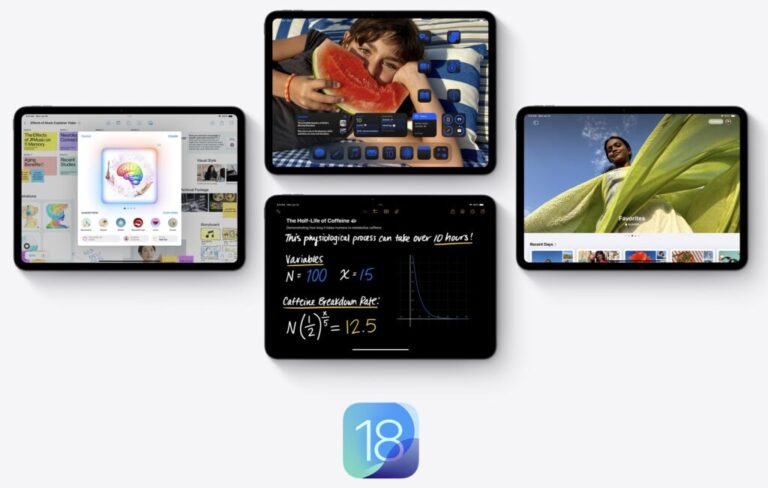
I upgraded myself from the original iPad mini to the iPad mini 4 before I went to Las Vegas and the differences are remarkable. Not only is it thinner and lighter but the screen is much better, the speed is a lot faster and I simply love the Touch ID. I had been trying to activate my old iPad mini with my finger after being used to that with my iPhone so it is a welcome addition for my primary reading device. I prefer the iPad mini to the full-size iPad or the iPad Pro because of the size. It feels like a paperback book in my hand and even on a crowded airplane it is comfortable to use.
Do you know about tethering? I don’t know how many people I have talked out of buying a cellular iPad by explaining tethering. I guess that is a bit against my interests as you pay an extra $130 for cellular versions of the iPad. If you buy that cellular version you also need a cell contract which might be another $30 a month. Tethering is a much better idea. Tethering is where you share the cellular connection from your iPhone with your iPad. You activate Personal Hot Spot and boom you have your own private wireless network over cellular. The other day Comcast had an outage here in the Keys and I used tethering with my Mac to work all day. Most carriers will charge you a little more for tethering but it is less than the $30. With my iPad, I simply choose “donphone” from the wireless setup and I am connected with the same speed as if I had the cellular version of the iPad.
This week’s Kibbles & Bytes exclusive is a “**fully configured 13-inch MacBook Air.**”:http://www.smalldog.com/wag900002125/special-save-50-on-apple-refurbished-macbook-air-and-free-hammerhead-case This Apple factory reconditioned MacBook Air carries the same 1-year Apple warranty as new Macs and we are bundling it with AppleCare so you actually get 3-years of warranty protection and 3-years of free Apple technical support instead of the normal 90-days. This MacBook Air is the same as the one I use and love. It features a 1.7GHz i7 processor, 8GB of ram and a big 512GB SSD drive. I am going to take $50 off and include a free Hammerhead neoprene case for this MacBook Air. Regular price is $1639.97 but for Kibbles & Bytes readers this week only (while supplies last) the price for this bundle is “**$1559.98.**”:http://www.smalldog.com/wag900002125/special-save-50-on-apple-refurbished-macbook-air-and-free-hammerhead-case