Apple Raises Prices on Macs and iPads, but not iPhones or Apple Watches… Yet

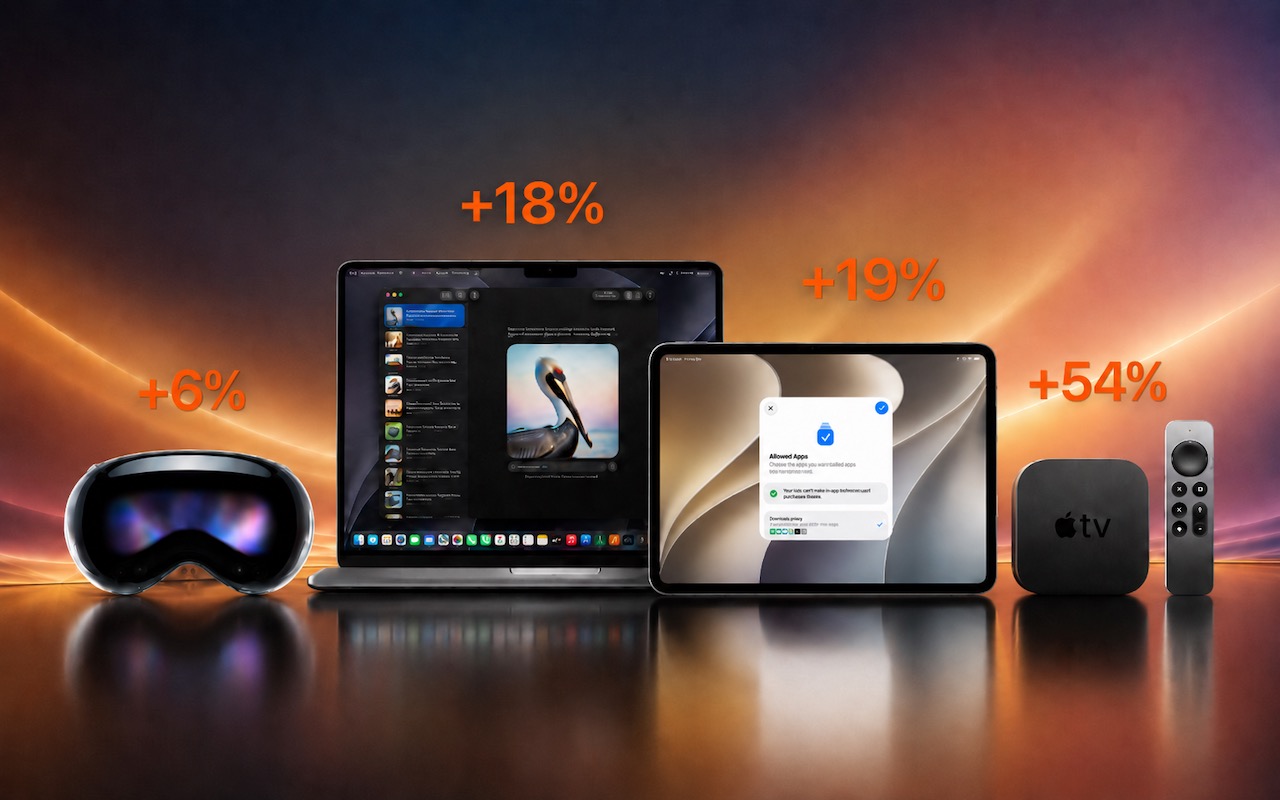
There’s no way to put a positive spin on this: Apple has raised prices across most of its product lineup, with increases averaging 20% on Macs, iPads, HomePods, the Apple TV, and even the Vision Pro. The iPhone and Apple Watch remain unaffected… for now.

The price hikes took effect on June 25. In a statement to the press, Apple blamed the AI industry’s insatiable appetite for memory chips, which has caused prices for memory and storage to increase up to sixfold:

The consumer electronics industry is facing an unprecedented challenge. The rapid expansion of AI data centers has created an extraordinary surge in demand for memory and storage. We have never seen a component price increase this much, this quickly. We have shielded our customers from these increases so far, but we have now reached a point where we need to begin raising prices on a number of products.

Apple’s price increases vary widely. The base model of the Apple TV 4K took the biggest percentage hit, jumping from $129 to $199—a 54% increase that’s particularly puzzling given the device has only 64 GB of storage and 4 GB of memory. It may be setting a new price floor for the next-generation Apple TV. At the other end of the percentage increase spectrum, the Vision Pro rose just 6%, from $3,499 to $3,699.

Mac and iPad Price Changes

The Mac lineup saw significant increases at both the low and high ends:

  • MacBook Neo: $599 → $699 (+17%)
  • MacBook Air (13-inch): $1,099 → $1,299 (+18%)
  • MacBook Pro (14-inch base): $1,699 → $1,999 (+18%)
  • Mac mini (M4): $599 → $799 (+33%)
  • Mac Studio (M3 Ultra): $3,999 → $5,299 (+33%)

The $1,300 increase for the M3 Ultra model of the Mac Studio is the largest absolute dollar jump in the lineup—a reflection of just how much high-memory configurations are affected by the shortage.

iPads saw increases of 15–30%, with the base iPad hit hardest:

  • iPad: $349 → $449 (+29%)
  • iPad mini: $499 → $599 (+20%)
  • iPad Air (11-inch): $599 → $749 (+25%)
  • iPad Air (13-inch): $799 → $949 (+19%)
  • iPad Pro (11-inch): $999 → $1,199 (+20%)
  • iPad Pro (13-inch): $1,299 → $1,499 (+15%)

Base prices tell only part of the story. Memory and storage upgrade prices also jumped dramatically, with the 64 GB and 128 GB memory upgrades for M5 Max models of the MacBook Pro doubling in price.

Why iPhones and Apple Watches Were Spared

Apple left the prices for the iPhone, Apple Watch, AirPods, and Studio Display unchanged. The Studio Displays and AirPods likely escaped because they use minimal memory. The iPhone and Apple Watch are a different story—Apple may be willing to accept lower margins on its flagship products, betting that stable prices will drive enough additional sales to offset reduced profit per unit.

There’s also the timing factor. New iPhone and Apple Watch models are expected in September, and rumors suggest Apple will introduce only high-end (and higher margin) iPhone 18 models then, with more affordable models held until early 2027. That makes buying a current-generation iPhone now potentially the better deal—new models will almost certainly debut at higher prices.

Apple Isn’t Alone

The memory crisis has hit the entire consumer electronics industry. Microsoft raised prices on all Surface PCs. Samsung is raising prices on its Galaxy smartphones. Lenovo, HP, and Dell have all raised laptop prices.

The culprit is the industry’s rapid expansion into AI. Data centers are consuming memory and storage at a pace the industry wasn’t equipped to handle. Memory chip suppliers like Micron, Samsung, and SK Hynix have directed production toward AI chipmakers like Nvidia, who are willing to pay top dollar, leaving consumer electronics to compete for whatever remains. Industry observers expect the shortage to persist through at least 2027 due to the time required to build manufacturing capacity.

What Should You Do?

If you need a Mac or iPad, some retailers may not have updated prices yet, but that won’t last. Similarly, you could look for a refurbished Mac from Apple or a certified pre-owned Mac from retailers like OWC, but those prices have largely increased as well.

For the iPhone and Apple Watch, the calculus is unusual: normally, we’d encourage waiting for September’s new models, but this year, buying now at current prices may save you some money.

Ultimately, the only options may be to bite the bullet and pay current prices, buy a less-expensive model or configuration, or hold on to your existing hardware in the hopes that prices come back down.

(Featured image generated by Adam Engst with ChatGPT)


Social Media: Apple just raised Mac and iPad prices by 15–33%, blaming the AI industry’s hunger for memory and storage chips. The iPhone and Apple Watch were spared, but the next new models may be more expensive. Here’s what you need to know.


Similar Posts

  • _Dear Friends,_

    I am off to Daytona for the 75th Bike Week. We went out to the 75th anniversary of the Sturgis Bike Week so it is only appropriate for us to hit the one sort of in our neighborhood, too. We will be riding on our 2003 Victory motorcycles and trying to avoid any big roads.

    Sugaring season in Vermont is well underway and this time of the year in Vermont always reminds me when we used to sugar the old-fashioned way. Now it is mostly pipelines and big sugaring operations but back when we lived in North Wolcott, Vermont I had a big work horse. The horse was kind of untrained but hitching her to the sled with the big heavy sap gathering tank made her behave. We would tap the trees by hand, hang buckets and as the sap began to flow we would tramp through the deep snow to empty the buckets into the tank. One horsepower was a lot of power as the horse would make her way through the sugar maples and the tank got full. We would take it to our makeshift sugaring arch and boil the sap into yummy syrup. Some of the best times! I still prefer the “grade b” syrup over fancy grade.

    This week’s Kibbles & Bytes exclusive brings back the “**Chill Pill six-pack special.**”:http://www.smalldog.com/wag900002006/ These little portable speakers have been around for a long time and I need to reduce our inventory. So, you can get 2 Black, 2 Red and 2 White Chill Pill speakers for only $29 this week. They make great gifts and are great for camping or just hanging out in the yard. Normally, they are $9.99 each but this week 6 for “**$29!**”:http://www.smalldog.com/wag900002006/

  • A Swinging Hot Spot in Paradise

    You are visiting Key West, accompanied by your trusty iPhone and MacBook Air. Suddenly there’s an emergency at work, and you need to get online with your Mac. You can pick up a cell signal with the iPhone, but there’s no Wi-Fi that isn’t locked up. Well, my first thought might be “oh well, I’m on vacation!” but you are dedicated and need to be online.

    Don’t worry! You can use your iPhone’s cellular data plan to create a personal Wi-Fi hotspot that lets your Mac access the Internet through your iPhone. Also called “tethering,” it’s fast, easy, and can be a life-saver when you just have to get online with a Mac or your Wi-Fi-only iPad. It supports up to 5 users, too, which means you can get your team online, too!

    Before we explain how to do set up a personal hotspot, note that most but not all cellular carriers allow tethering on existing plans. For some, you might have to pay more for tethering. Keep in mind that any data consumed by your Mac while tethered will count against your data allowance and may generate overage fees. Carriers with “unlimited” data, like T-Mobile and Sprint, generally throttle your bandwidth to slower speeds if you use too much data.

    Along those lines, if you use a file sharing service like Dropbox or Google Drive, or an Internet backup service like CrashPlan or Backblaze, turn them off before connecting. Particularly if they haven’t connected in a while, those services can transfer a lot of data quickly, which could result in a hefty overage charge or awkward data throttling for the rest of the month.

    With those warnings out of the way, follow these steps in iOS 9 to turn on Personal Hotspot:

    1. On your iPhone, if you’ve never enabled the feature before, go to Settings > Cellular > Personal Hotspot. Once you’ve turned Personal Hotspot on once, it moves up a level, so you can access it from Settings > Personal Hotspot.
    1. Tap on Wi-Fi Password and enter a password that’s at least 8 characters long and easy to type. It doesn’t need to be super secure because you can keep Personal Hotspot turned off unless you’re using it. But you do want a password so random people nearby can’t connect and use your data.
    1. Once you’ve entered a password, slide the Personal Hotspot switch.

    That’s it! The Personal Hotspot screen provides basic instructions for connecting to the iPhone via Wi-Fi, Bluetooth, and USB. Stick with Wi-Fi, since it’s the easiest and most reliable in most cases.

    • To connect to your new Personal Hot Spot on your Mac, click the Wi-Fi icon in the menu bar and choose your iPhone’s name.
    • On your iPad, go to Settings > Wi-Fi and choose your iPhone.
    • Enter your password when prompted, making sure to select Remember This Network. That way, you won’t even have to enter your password the next time.
    • The Mac or iPad then connects to your iPhone, showing a hotspot icon instead of the usual wave icon for the Wi-Fi menu.

    Could it get any simpler? When you’re done, the safest thing to do, to ensure you don’t accidentally end up using too much of your data allowance, is to turn off the Personal Hotspot switch in Settings > Personal Hotspot. Your Mac or iPad will automatically disconnect.

    Actually, it CAN be simpler! Your Mac can automatically use the personal hotspot on your iPhone to connect to the Internet when they’re within range of each other.

    Use Instant Hotspot on your iPhone (with iOS 8 or later) to provide internet access to your Mac computers and other iOS devices (with OS X Yosemite or iOS 8) that are in range and signed into iCloud using the same Apple ID. Instant Hotspot uses your iPhone — you don’t have to enter a password or even turn on Personal Hotspot.

    Make sure your iOS device and your Mac are signed into iCloud with the same Apple ID.

    On your Mac, click the Wi-Fi status icon in the menu bar, then choose your iPhone or iPad.

    After you connect to the iPhone or iPad Personal Hotspot, you can check the cellular signal strength and the battery status of the iPhone or iPad in the Wi-Fi status menu.

    When you’re not using using the hotspot, your devices automatically disconnect to save battery life.

    One more big advantage of Personal Hot Spots. When you are shopping for that new iPad, perhaps you don’t need the cellular model if you nearly always have your iPhone handy. That’s what I do. If I need internet access on my Wi-Fi iPad, I simply connect to my Hot Spot! Saves me the added cost of a cellular-enabled iPad and the monthly fees from the cell carrier!